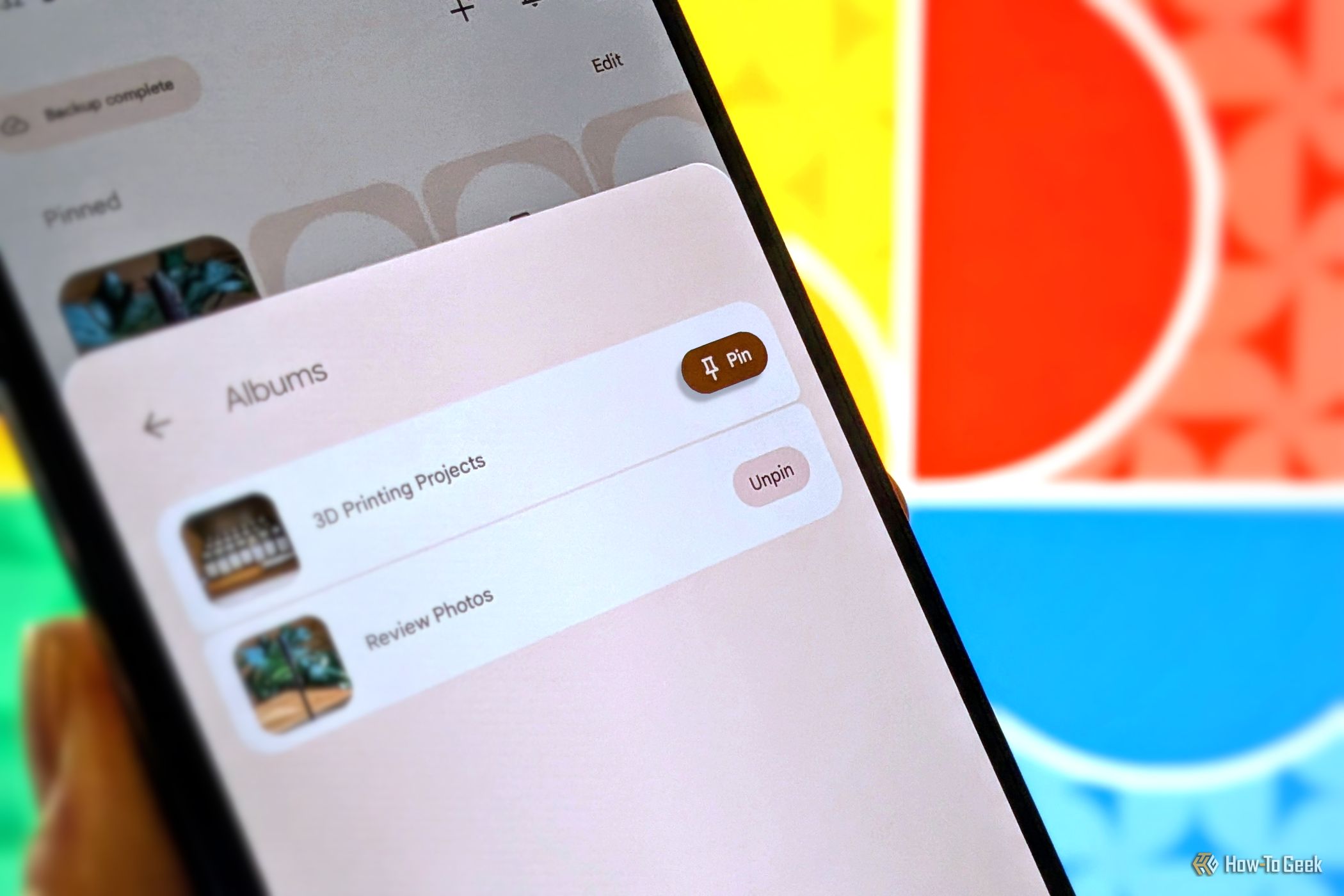
Can’t find your favorite album in Google Photos? The Collections tab is a mess — albums, on-device folders, people, and places constantly shuffle around. A new Pin feature finally brings order to the chaos, letting you keep your most-used albums, folders, and people pinned to the top.
Pin button in Google Photos (Credits: How-To Geek)
How to Pin Google Photos Albums, Folders, and People
First, make sure you have the latest version of Google Photos for Android or iPhone — the Pin feature is rolling out with the most recent update. Then follow these steps:
Step 1: Open Google Photos and tap the Collections tab at the bottom.
Step 2: Look at the Pinned section at the top of the page — Google may have already pinned a few default selections for you.
Step 3: Press and hold any album, on-device folder, person, place, or document on the page. A menu will appear with a Pin or Unpin option — tap Pin to keep it at the top.
Alternatively, tap Edit inside the Pinned section. This opens a management view where you can reorder pins, remove pins, and browse your full list of albums, folders, people, and more to pin additional items — arguably the easier way to set everything up.
What Can You Pin in Google Photos?
More than you’d expect. Beyond albums and people, you can pin items from the “Other Collections” section, including Favorites, Screenshots, Moments, Videos, Stickers, Archive, Locked, Trash, and even the “Recently Added” folder.
If you find yourself scrolling through the Collections tab hunting for the same albums over and over — never quite where you expect them — pinning your most-used albums and favorite people solves the problem instantly. Google has redesigned this page several times, and this simple addition makes it the most usable version yet.
Also Read: How to Back Up Your Android Photos to a Windows PC for Free With Quick Share
Source: How-To Geek — read the full story there.