
Tech
The 6 Best Free Speed Test Apps to Check Internet Performance


A fast internet plan does not always guarantee a stable connection. Wi-Fi congestion, device limitations, network throttling, and local outages can all affect real-world performance. Free internet speed test apps make it easier to check download speed, upload speed, ping, jitter, and connection consistency from your phone or tablet.
Overall, the best speed test app depends on what you need to troubleshoot. While some apps are best for a quick ad-free speed check, others provide testing history, coverage maps, app performance estimates, or more detailed latency metrics for gaming, video calls, streaming, and business communications.
SEE: Does a VPN Slow Down Your Internet Speed? (TechRepublic)
Top Wi-Fi apps comparison table
All the free speed test apps are effective, but it helps to look at the ratings and number of reviews on the App Store and Google Play to determine what appeals to you.
FAST Speed Test ranks lower in the ratings, but it has only received 239 reviews on the App Store. The others did better and generally got enough reviews to warrant an accurate rating.
| App | Best for | App Store rating | App Store reviews | Google Play rating | Google Play reviews |
|---|---|---|---|---|---|
| Meteor | Ad-free testing with app performance insights | 4.8 | 5.3K | 4.8 | 133K |
| Speedtest by Ookla | Most recognizable all-around speed test | 4.5 | 28K | 4.6 | 1.4M |
| FAST Speed Test | Quick, ad-free speed checks | 4.0 | 239 | 4.2 | 49.7K |
| Internet Speed Test Speedcheck | Speed history and Wi-Fi finder features | 4.9 | 98K | 4.5 | 545K |
| Speed Test Master | Basic Wi-Fi and mobile speed testing with high Google Play volume | N/A | N/A | 4.5 | 1.03M |
| V-SPEED Speed Test | More detailed latency, server, and results-history controls | 4.7 | 1.2K | 4.8 | 482K |
Best Wi-Fi apps to test network performance
Meteor
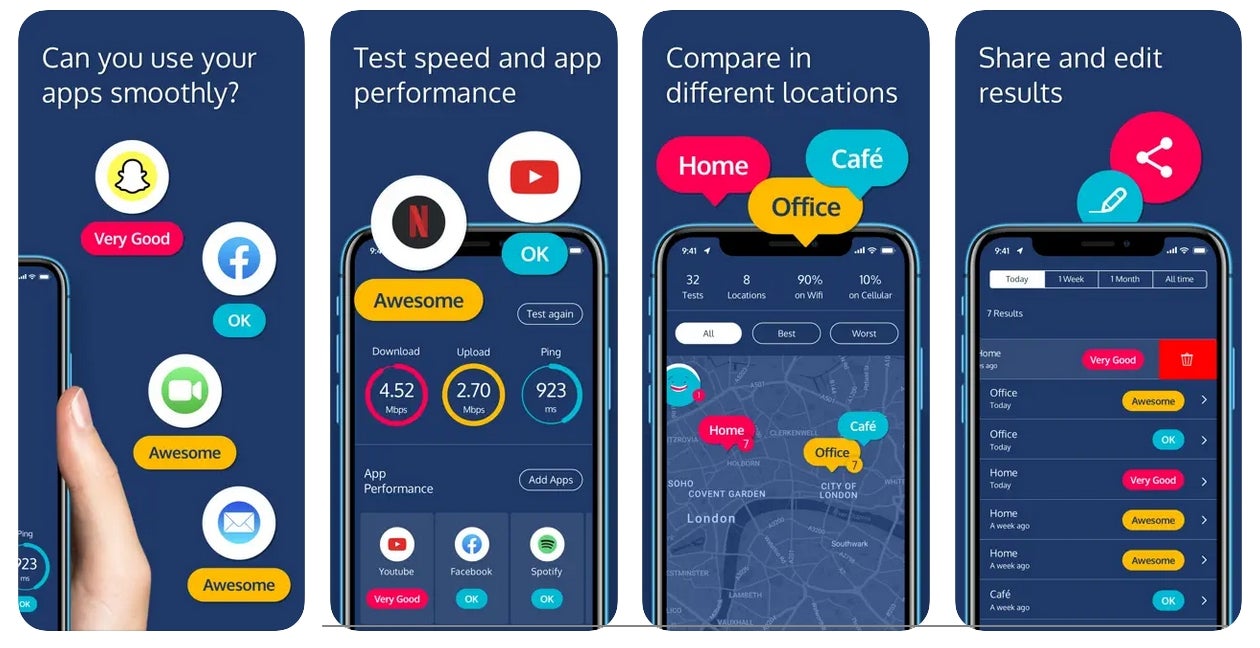
The Meteor app will perform a speedy network test and then list your download, upload, and ping performance. It also allows you to test anticipated performance for several apps, including YouTube, Slack, FaceTime, Google Maps, and Netflix. The app is available on the App Store and Google Play.
Speedtest by Ookla
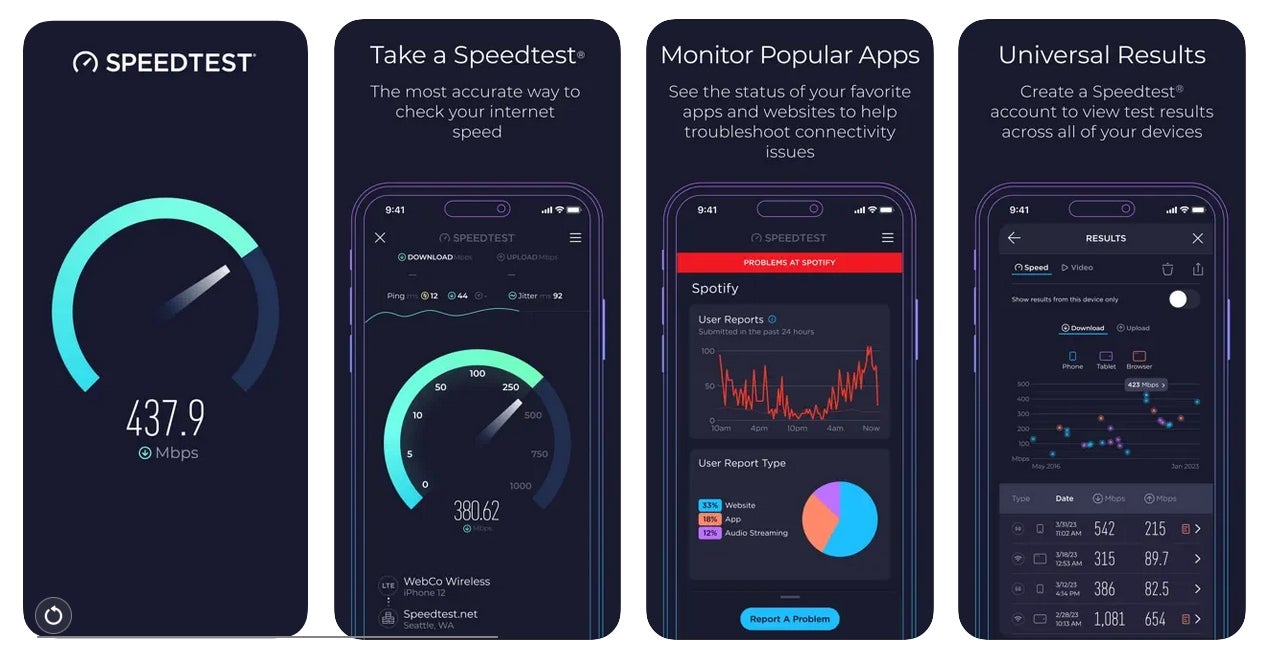
Speedtest by Ookla is one of the more popular Wi-Fi test apps on the market. Once downloaded, users can use the app to test network speed, streaming performance, and more. The in-app hamburger menu provides access to past performance results, listing previous download and upload speeds, as well as information on ping, jitter, and packet loss. It is available on the App Store and Google Play.
SEE: 9 VoIP Troubleshooting Tips (TechRepublic)
FAST Speed Test
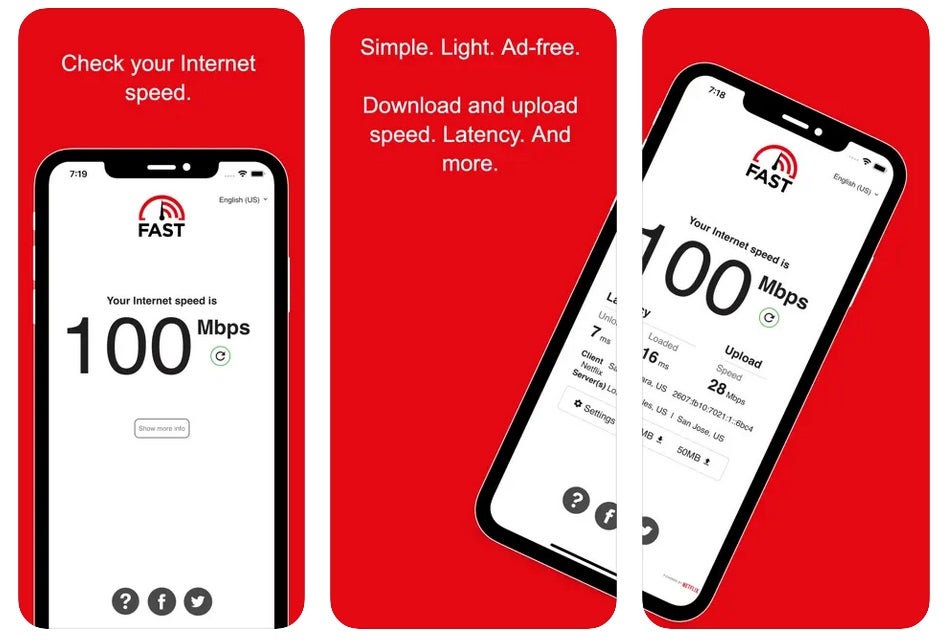
FAST Speed Test is owned by Netflix and is available as an app or on Fast.com. The app and web versions have minimalist interfaces, which are great for quickly checking your network speed without being bombarded by ads. However, it lacks the advanced network testing feature that other speed test apps offer. It’s available on the App Store and Google Play.
Networking: Must-read coverage
Internet Speed Test Speedcheck
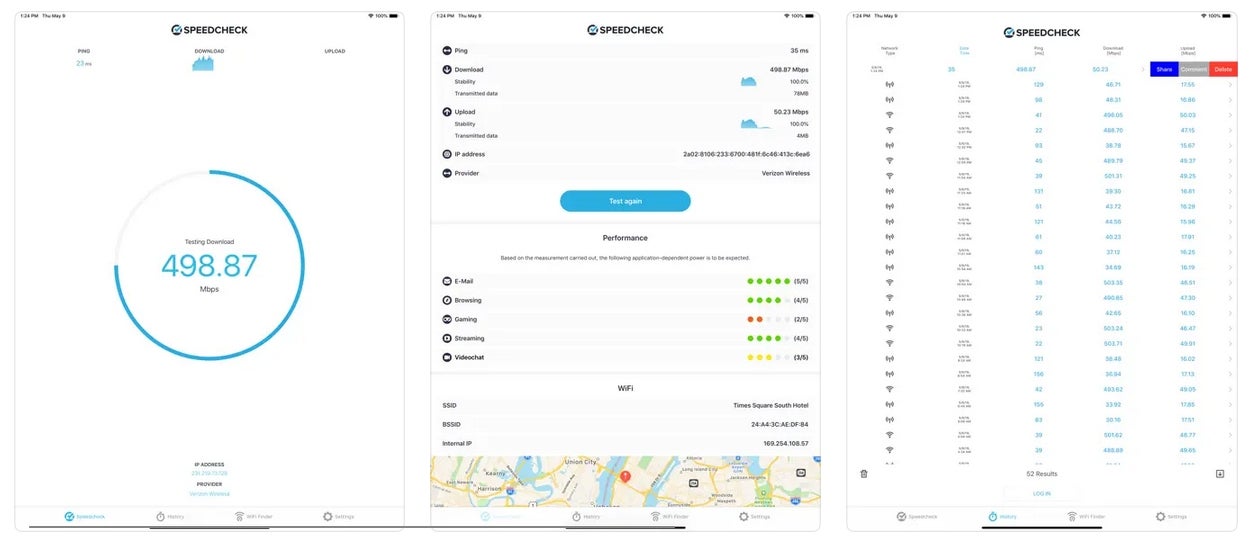
The Internet Speed Test Speedcheck app features a Wi-Fi speed test feature with a no-frills user interface. After the test, the results page will illustrate anticipated performance for email, browsing, gaming, streaming, and video chat using a five-point rating system. The app also makes it easy to peruse past speed tests to gauge performance history as usage and connectivity fluctuations over time. The bottom of the app includes a “WiFi Finder” button, but you must install a separate SpeedSpot app to use this feature. This is available on the App Store and Google Play.
SEE: What Is 5G? (TechRepublic)
Speed Test Master
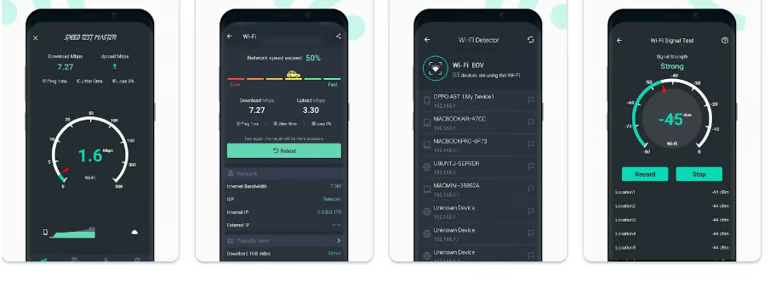
The Speed Test Master app performs a fast download and upload network test and displays the results, along with jitter and packet loss details. The tools feature also includes a Wi-Fi detector to detect nearby Wi-Fi networks. It is available on Google Play.
V-SPEED Speed Test
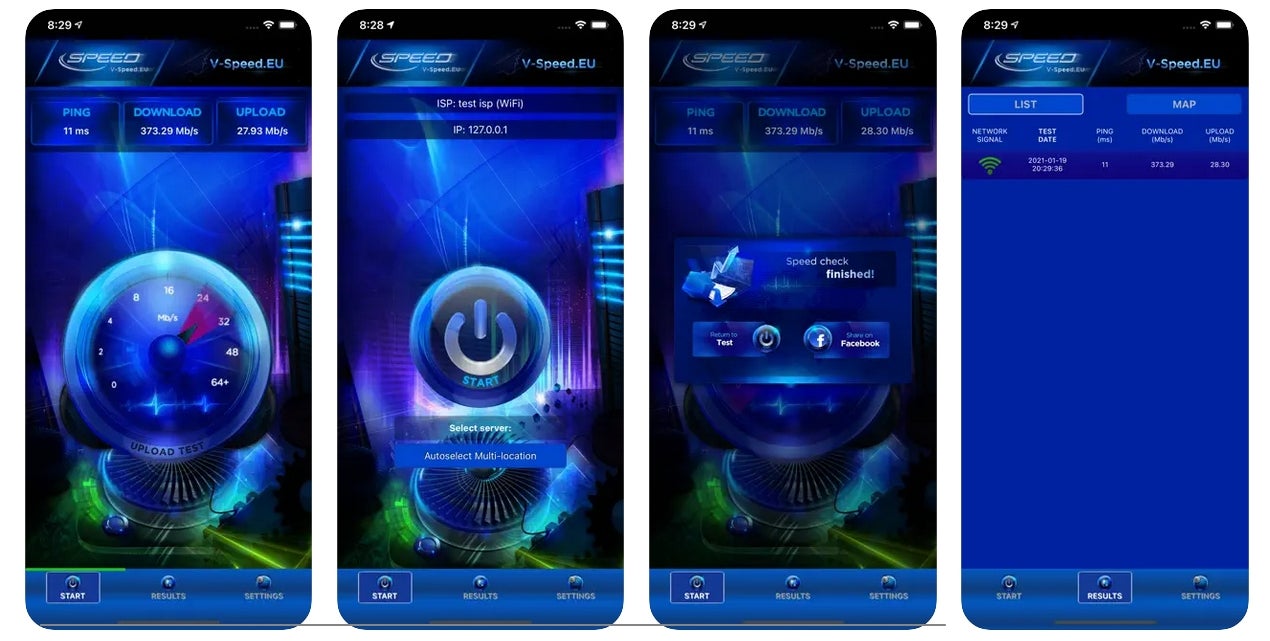
V-SPEED Speed Test offers a quick Wi-Fi test with a vivid, easy-to-navigate user interface. Similar to other apps on this list, it gauges network performance and stores past results. The app also makes it easy to share its Wi-Fi test results on social media for those so inclined. It is available on the App Store and Google Play.
How to choose the best internet speed test app
The best internet speed test app depends on how you plan to use it. For quick connection checks, a simple app may be enough. For troubleshooting, look for tools that include test history, latency metrics, and detailed performance data.
When comparing apps, consider:
- Core speed metrics: Download speed, upload speed, and ping are essential.
- Latency details: Jitter and packet loss can help identify issues affecting video calls, VoIP, and gaming.
- Test history: Saved results make it easier to track performance over time.
- Server options: Manual server selection can provide more accurate comparisons.
- Platform availability: Make sure the app supports your device, whether iOS, Android, or both.
- Privacy disclosures: Review what data the app collects and how it is used.
- Ease of use: A straightforward interface makes testing faster and easier.
For the most accurate results, run multiple tests at different times and locations before making changes to your internet plan or network setup.
Methodology
To choose the best free internet speed test apps, I reviewed widely used iOS and Android apps that help users measure internet performance from a phone or tablet. I prioritized apps that are free to download, easy to use, widely available on major app stores, and useful for diagnosing common connection issues such as slow downloads, weak Wi-Fi, high latency, or inconsistent mobile data performance.
I compared each app based on the following criteria:
- Availability: I checked whether each app is currently available on the Apple App Store, Google Play, or both.
- User ratings and review volume: I considered app store ratings and review counts as signals of user adoption and overall satisfaction, while recognizing that ratings can change over time.
- Testing features: I looked for support for download speed, upload speed, ping, jitter, server selection, test history, coverage insights, and other diagnostic tools.
- Ease of use: I favored apps that make it simple to start a test and interpret results without requiring technical expertise.
- Use-case fit: I evaluated whether each app is better suited for quick checks, Wi-Fi troubleshooting, mobile data testing, gaming, streaming, video calls, or more advanced network diagnostics.
- Privacy and data transparency: I reviewed app store privacy and data safety information where available, since free speed test apps may collect network, device, usage, performance, or location data.
The final recommendations are based on a combination of public app store information, listed features, platform availability, user feedback signals, and practical usefulness for everyday internet troubleshooting. App ratings, review counts, features, and availability may change, so users should confirm current details in their device’s app store before downloading.
>

Inventory management software tracks stock, automates reorders, reduces stockouts, and connects inventory data with sales, ecommerce, warehouse, shipping, and accounting tools. The best inventory management software should help businesses see what is in stock, where items are located, when to reorder, and how inventory changes across every sales channel.
I tested 11 inventory management systems and selected 7 top options for 2026. I evaluated each platform based on core inventory tools, integrations, reporting, forecasting, security, scalability, implementation needs, pricing, and user feedback. Use the table and recommendations below to match each system to your SKU volume, sales channels, budget, and operations.
Best inventory management software at a glance
Best inventory management systems compared
This side-by-side compares the best inventory management software, showing ratings, starting price, and whether each offers webhooks, manufacturing/BOM, forecasting, and a free plan.
| NetSuite Inventory Management (Oracle) | (via SuiteScript; no native webhooks) |
(MRP & WMS modules) |
(Demand Planning module) |
||
| Zoho Inventory | (workflows + webhooks) |
(composite items; not full MRP) |
(basic reorder rules) |
||
| Odoo Inventory | (One App Free) |
(Automated Actions/Webhooks) |
(MRP app) |
(add 3rd-party/ Studio if needed) |
|
| Katana MRP | (Planning & Forecasting) |
||||
| Cin7 | (AM/MRP modules) |
||||
| Unleashed Software | (Assemblies/BOM) |
(Advanced Inventory Manager) |
|||
| Square for Retail (Plus) |
How I chose the best inventory management software
I researched and evaluated a variety of inventory management software. Using a weighted rubric in my full methodology, I compared core inventory capabilities, integrations, customization, analytics, reporting, forecasting, scalability, security, reliability, total value for functionality, and my own personal evaluation.
Why you can trust TechRepublic
We evaluated 11 inventory management solutions using a rubric with 20+ data points, focusing on what matters most to SMBs: flexibility, scalability, and real-world usability.
Our analysis prioritized integrations, analytics, core inventory features, and system reliability, along with overall value for functionality.
Recommendations are based on hands-on testing (when available), vendor documentation, and verified user feedback to reflect real business use.
NetSuite Inventory Management (Oracle): Best for complex, scaling operations
Our rating: 4.6 out of 5

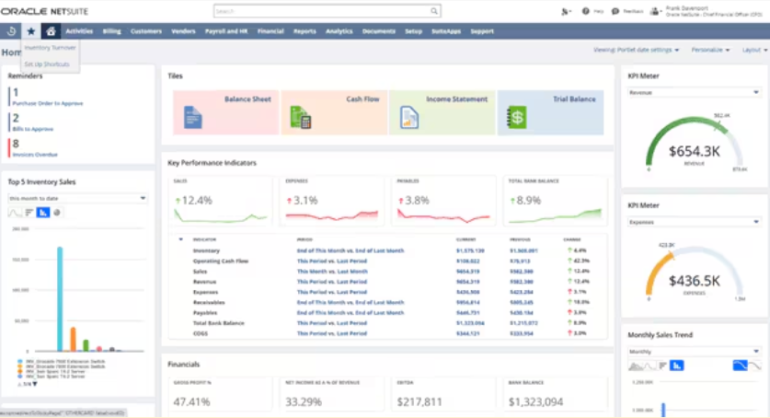
NetSuite Inventory Management stands out for depth and extensibility: native demand planning that models seasonality and sales forecasts, enterprise-grade WMS with mobile RF barcode scanning, and a full developer platform (SuiteScript + SuiteTalk REST/SOAP) for custom logic and integrations. For multi-location, omnichannel operations, the NetSuite Connector keeps data flowing across ecommerce, marketplaces, POS, and 3PLs without brittle CSV hops.
Why I chose NetSuite
It earns “best overall” because it scales from sophisticated SMBs to mid-market and enterprise without swapping systems: advanced planning, configurable WMS, and a mature integration layer reduce manual work and data drift as order volume, channels, and locations grow.
Who should use NetSuite Inventory Management
- Mid-market and enterprise businesses that need ERP, WMS, demand planning, and inventory controls in one system
- Multi-location or omnichannel operations managing warehouses, ecommerce, POS, marketplaces, and 3PLs
- Teams that can budget for implementation, system administration, and longer setup timelines
Pricing
- Model: Quote-based annual subscription for base edition + users + add-on modules (e.g., WMS, Demand Planning, Connector)
- Typical first year (SMB): ~$25k–$50k all-in; complex rollouts cost more
- Implementation: One-time services often $25k–$75k (migration, integrations, training)
- Cost drivers: users, modules, locations/warehouses, order volume, integrations
Features
- Demand planning using historicals, seasonality, and sales forecasts
- Mobile WMS with RF barcode scanning, putaway/pick strategies, cycle counts
- SuiteScript (JavaScript) for custom workflows/UI; SuiteTalk REST/SOAP APIs
- NetSuite Connector for ecommerce, marketplaces, POS, and 3PLs
- Assemblies/BOMs and kits/packages for complex item structures
NetSuite Inventory Management user reviews
NetSuite Inventory Management user reviews are strongest for ERP depth, reporting, multi-location visibility, and scalability. Common complaints mention cost, implementation time, and the need for experienced admin or consulting support.
Pros and cons
|
|
Zoho Inventory: Best overall for new and SMBs
Our rating: 4.3 out of 5

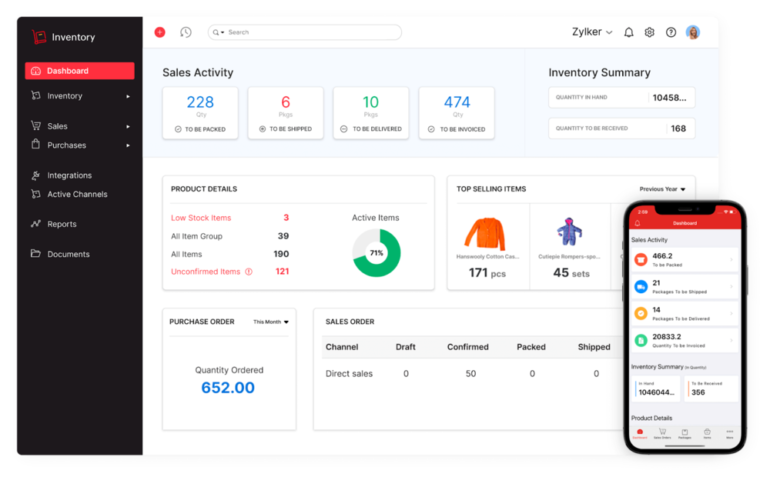
Zoho Inventory punches above its weight for tech-savvy small teams: built-in workflow automation with native webhooks and custom functions, tight integrations across carts/marketplaces/shipping/accounting, and one-click connectivity to Zoho Analytics for 100+ prebuilt reports and dashboards. Composite items (light assemblies) plus optional lot/serial tracking cover most non-manufacturing use cases without the overhead of a full MRP.
Why I chose Zoho Inventory
It delivers the best capability-per-dollar for growing SMBs: fast rollout, strong extensibility (workflows/webhooks/Deluge), and a broad ecosystem that reduces connector sprawl. If you outgrow base reporting, Zoho Analytics (with Zia insights) adds forecasting-style analysis without changing systems.
Who should use Zoho Inventory
- SMBs that want strong inventory tools without enterprise pricing
- Businesses that need ecommerce, shipping, accounting, and marketplace integrations
- Teams that want automation through workflows, webhooks, custom functions, and the Zoho product suite
Pricing
(monthly) |
(annually) |
||||||
|---|---|---|---|---|---|---|---|
| Free | |||||||
| Standard | |||||||
| Professional | |||||||
| Premium | |||||||
| Enterprise |
Features
- Workflow automation with webhooks and custom functions (Deluge)
- 100+ ready-made reports/dashboards via Zoho Analytics; Zia AI for natural-language insights
- Composite items (kitting/light assemblies) with optional serial/lot tracking
- Broad native integrations: marketplaces, shopping carts, shipping carriers (including EasyPost), accounting, CRM
Zoho Inventory user reviews
Zoho Inventory user reviews are mostly positive for ease of use, value, integrations, and order management tools. Common complaints mention plan limits, advanced feature gating, and the need to upgrade as order volume, users, or locations increase.
Pros and cons
|
|
Also read: 6 Best Free Inventory Management Software for 2025
Odoo Inventory: Best for highly customizable, modular ERP
Our rating: 4.2 out of 5

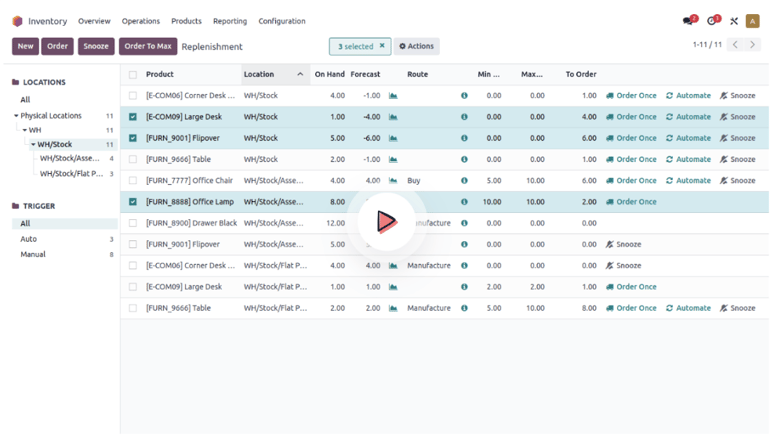
Odoo Inventory pairs a double-entry inventory engine with the broader Odoo suite, so you can run warehouses, manufacturing, ecommerce, and accounting on one stack. Out of the box, you get multi-warehouse control, barcode/lot/serial traceability, replenishment rules, and the ability to wire in carriers for live rates/labels; when you need deeper control, Odoo Studio adds no/low-code Automated Actions, and the new External JSON-2 API exposes data and workflows for custom integrations.
Why I chose Odoo Inventory
It’s the most adaptable option for tech-savvy teams that want to shape the system around their processes: Studio automation handles triggers and scheduled jobs, the API supports bespoke apps and 3PL links, and the MRP app brings full BOMs/operations when you outgrow simple kitting.
Who should use Odoo Inventory
- Businesses that want inventory, ecommerce, accounting, manufacturing, and other ERP tools in one modular system
- Tech-savvy teams that want to configure workflows, automations, and inventory rules around their own processes
- Companies that may need MRP, barcode scanning, multi-warehouse control, and carrier connections as they grow
Pricing
(monthly, per user/mo) |
||
|---|---|---|
| One App Free | One app, unlimited users, hosted on Odoo Online. (You can even choose Studio as the one app.) | |
| Standard | All apps, hosted on Odoo Online. (No Studio, multi-company, or external API in this tier.) | |
| Custom | All apps + Studio, Multi-Company, External API; host on Odoo Online / Odoo.sh / On-prem. |
Features
- Double-entry inventory with multi-warehouse and real-time moves
- Lots/serials traceability and barcode workflows
- Manufacturing (MRP) app with BOMs, operations, and work orders
- Replenishment planner with reordering rules (min/max, routes like MTO)
- Odoo Studio Automated Actions for no/low-code workflow logic
- External JSON-2 API for integrations and analytics access
- Carrier connectors for rating, labels, and tracking
Odoo Inventory user reviews
Odoo Inventory user reviews are mostly positive for flexibility, modular apps, and the ability to connect inventory with accounting, ecommerce, and manufacturing. Common complaints mention setup time, configuration needs, and a steeper learning curve than simpler inventory tools.
Pros and cons
|
|
See also: Best Open Source CRM Software for 2025
Katana MRP: Best for modern SMB manufacturers
Our rating: 4.1 out of 5

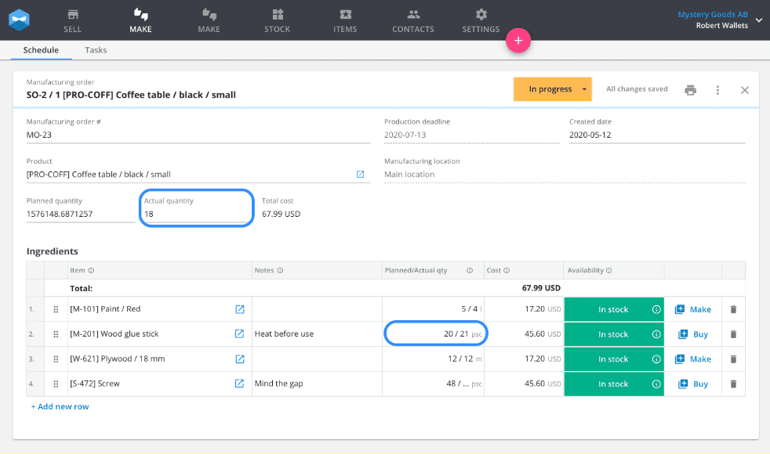
Katana MRP focuses on real-time production and inventory control with strong manufacturing depth: native BOMs/subassemblies, shop-floor/warehouse apps, and an open developer stack (REST API + webhooks) for event-driven integrations. Traceability is handled via an optional Full Traceability add-on (lots/serials), while reporting covers stock, cost, and movement insights — plus partner BI for advanced dashboards. Security-wise, Katana has completed a SOC 2 Type II audit.
Why I chose Katana MRP
It’s the sweet spot for tech-forward makers that have outgrown basic inventory: you get live material and order visibility, forecasting/planning tools, and robust integrations (Shopify/WooCommerce, QuickBooks/Xero, ShipStation) without jumping to a heavy ERP.
Who should use Katana MRP
- SMB manufacturers that need live material planning, production workflows, and shop-floor visibility
- Makers that have outgrown basic inventory tools and need BOMs, subassemblies, and production order tracking
- Teams that sell through Shopify, WooCommerce, QuickBooks, Xero, or ShipStation and need cleaner inventory sync
Pricing
(monthly, billed quarterly) |
(monthly, billed annually) |
||||
|---|---|---|---|---|---|
| Free | All core features & add-ons enabled for testing, API access | ||||
| Standard | Advanced insights, multicurrency, custom user permissions, barcode scanning | ||||
| Professional | Everything in Standard plus API access, Full Traceability, Planning & Forecasting, and Warehouse Management | ||||
| Professional Plus | Everything in Professional plus dedicated KAM and priority support |
Add-ons:
- Advanced Manufacturing: From $199/month (varies by plan)
- Warehouse Management: $199/month
- Planning & Forecasting: Included with Professional; add-on at $199/month for lower tiers
Features
- Open REST API with webhooks for real-time event notifications and custom apps
- Full Traceability add-on for batch/lot and serial number tracking
- Inventory reports (stock levels, movements, valuation) and cost reports; optional partner BI dashboards
- Inventory planning and forecasting tools to automate replenishment decisions
- Native integrations for ecommerce, accounting, and shipping (e.g., Shopify, WooCommerce, QuickBooks, Xero, ShipStation)
- SOC 2 Type II attestation and documented security posture
Katana MRP user reviews
Katana MRP user reviews are mostly positive for production visibility, BOM tools, material tracking, and ecommerce or accounting integrations. Common complaints mention higher pricing than basic SMB inventory systems and the need for add-ons or higher tiers for advanced traceability and planning.
Pros and cons
|
|
Cin7: Best for multichannel ecommerce + accounting sync
Our rating: 4 out of 5

Cin7 Core combines strong inventory control with native assemblies/BOMs, built-in Sales Demand Forecasting (multiple models), and a mature developer stack (API v2 plus event subscriptions) for automating order flows between marketplaces, 3PLs, and accounting. If you need deeper production, you can start with standard assemblies and step up to Advanced Manufacturing as complexity grows — without re-platforming.
Why I chose Cin7
It’s a fit for tech-savvy sellers running Shopify/Amazon + Xero/QuickBooks and seeking tight sync, plus forecasting — strong enough for growing omnichannel brands, without the administrative overhead of a full ERP.
Who should use Cin7
- Ecommerce and wholesale sellers managing inventory across Shopify, Amazon, accounting software, and 3PLs
- Growing brands that need order automation, forecasting, assemblies, and stronger channel sync
- Businesses that need more inventory depth than SMB-first tools but do not want a full ERP rollout
- Pricing
| Core Standard | 5 users, 2 ecommerce/app integrations, 6,000 sales orders/year, unlimited locations | |
| Core Pro | 10 users, 4 integrations, 24,000 orders/year, MRP (material requirements planning) | |
| Core Advanced | 15 users, 6 integrations, 120,000 orders/year (expandable), Advanced WMS | |
| Omni | 8 users, 5 integrations, flexible order volume, fully customizable |
Features
- Sales Demand Forecasting with selectable models from historical sales
- API v2 with broad endpoints; event subscriptions for near-real-time workflows
- Assemblies/BOMs included in standard manufacturing; Advanced Manufacturing available for complex production
- Optional AI forecasting and replenishment optimization (ForesightAI / partner apps)
- Native and partner integrations across ecommerce, accounting, shipping, and 3PL
Cin7 user reviews
Cin7 user reviews are mostly positive for multichannel order management, ecommerce integrations, inventory visibility, and accounting sync. Common complaints mention pricing, setup time, add-on costs, and occasional reliance on partners for deeper reporting or planning needs.
Pros and cons
|
|
Unleashed Software: Best for wholesalers needing lot/serial traceability
Our rating: 3.9 out of 5

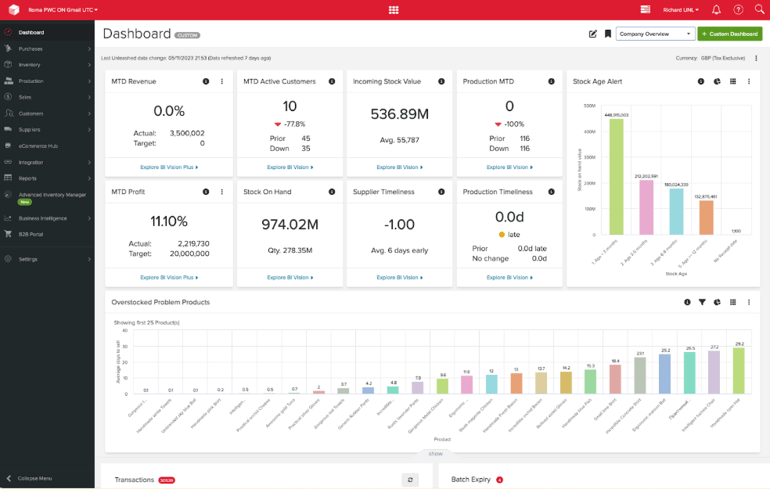
Unleashed Software is a warehouse-grade inventory platform with first-class batch/lot and serial tracking, light manufacturing (assemblies/BOM), and a developer-friendly stack (public REST API + webhooks) to automate purchasing, fulfillment, and accounting flows. Teams that outgrow static reorder points can add Advanced Inventory Manager (AIM) for demand forecasting and replenishment modeling, while the built-in BI Foundation provides KPI dashboards with documented calculations for auditability.
Why I chose Unleashed Software
It’s a strong fit for product companies that need traceability plus planning without moving to a full ERP. AIM’s forecasting and production-aware replenishment help wholesalers/light manufacturers keep stock lean, and the API/webhooks make it practical to extend with ecommerce, 3PL, and accounting apps.
Who should use Unleashed Software
- Wholesalers and distributors that need lot, batch, or serial number tracking
- Product businesses that need purchasing, sales, inventory, light manufacturing, and traceability tools in one system
- Teams that need API and webhook support for ecommerce, 3PL, accounting, and custom workflows
Pricing
| Medium | Core modules: Inventory, Purchasing, Sales, Production | |||
| Large | Same core modules included | |||
| Large Plus | Same core modules included |
Add-on fees apply for ecommerce integrations, B2B ecommerce store, advanced inventory manager, business intelligence, CRM, and extra API calls.
Features
- Batch/lot and serial number tracking across transactions
- Assemblies/BOMs for light manufacturing and kitting
- Advanced Inventory Manager (AIM) for demand forecasting and replenishment optimization
- Business Intelligence (BI) dashboards with published KPI definitions
- Public REST API and webhooks (with sandbox) for integrations and automation
- Daily backups and GDPR-aligned data protection practices
Unleashed Software user reviews
Unleashed Software user reviews are strongest for traceability, purchasing, stock control, and wholesale inventory visibility. Common complaints mention pricing, onboarding time, add-on costs, and the need to configure reports and workflows carefully.
Pros and cons
|
|
Square for Retail: Best for new/small retailers
Our rating: 3.7 out of 5

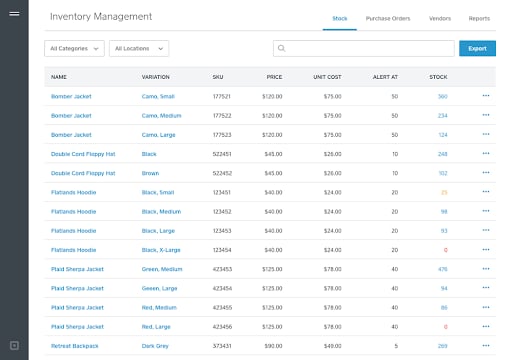
Square for Retail is a POS-native inventory system that’s ridiculously fast to launch: import items, scan barcodes, and start tracking stock across locations the same day. You get built-in stock counts, transfers, low-stock alerts, and purchase orders — plus optional hardware (like Square’s handheld with built-in scanner) and a large app marketplace for accounting, ecommerce, and marketing. For very small teams, that combination means fewer vendors to manage and less IT to babysit.
Why I chose Square for Retail
It’s the easiest on-ramp for new or lean retail operations. Square bundles payments, POS, and inventory with solid APIs, so you can open a store, sync online sales, and automate essentials without hiring a systems integrator.
Who should use Square for Retail
- New retailers that want POS, payments, and basic inventory in one easy system
- Small stores that need stock counts, purchase orders, barcode labels, and low-stock alerts without heavy setup
- Retailers already using Square payments or Square POS that want a simple upgrade path
Pricing
(per location) |
(high level) |
||
|---|---|---|---|
| Free | Retail POS app, online store, basic inventory tools | ||
| Plus | Advanced inventory, barcode label printing, COGS reports; 30-day free trial available | ||
| Premium | Custom rates, priority support, and tailored onboarding for larger retailers |
Features
- POS-native inventory: stock counts, multi-location transfers, low-stock alerts, and POs
- Inventory API and webhooks for real-time updates and custom automations
- Optional handheld device with built-in barcode scanner for mobile counts and sales
- App marketplace integrations for accounting, ecommerce, shipping, and more
- Role-based access and simple dashboards for item, sales, and location performance
Square for Retail user reviews
Square for Retail user reviews are mostly positive for easy setup, POS usability, payment processing, and basic inventory tools. Common complaints mention limited advanced reporting, no native lot or serial tracking, and less inventory depth than dedicated inventory management systems.
Pros and cons
|
|
Further reading: The 5 Best Retail Point of Sale (POS) Systems
What’s hot at TechRepublic
Methodology: How I evaluated the best inventory management software
To build this guide, I assembled an initial list of 11 inventory platforms (standalone IMS, POS-with-inventory, and SMB ERPs). I then scored each provider on a scale of 1 to 5 across our rubric and 20+ data points, emphasizing technical depth, extensibility, and fit for growing small businesses.
- Integrations and customization (25%): Breadth and quality of native connectors (ecommerce, POS, accounting, 3PL), API + webhooks depth, custom fields/forms, workflow automation, and third-party ecosystem/middleware support.
- Analytics, reporting, and forecasting (20%): Real-time dashboards/KPIs, ad-hoc drill-downs, scheduled/automated reporting, exception alerts, and the presence/maturity of predictive or AI-assisted demand planning.
- Scalability, security, and reliability (20%): Multi-user/multi-location performance, documented uptime posture, encryption and access controls (RBAC, SSO/MFA), compliance signals (e.g., SOC 2/ISO 27001), backups/DR, and audit logs.
- Core inventory capabilities (20%): Real-time, multi-location accuracy; barcode/QR plus lot/serial traceability; reordering rules and lead-time handling; variants/kitting/BOM/assemblies.
- Total value for functionality (15%): Feature-to-cost ratio, licensing flexibility, implementation time/effort, vendor transparency and release cadence, and quality of technical support/developer resources.
Scores were based on hands-on exploration (when available), verified vendor documentation and pricing pages, and aggregated user feedback from reputable review sites. I then selected the top seven that map cleanly to common SMB scenarios (new retailers, multichannel brands, light manufacturers, and teams needing maximum flexibility).
How to choose the best inventory management software
Choose inventory management software based on how your business buys, stores, sells, tracks, and reports inventory. A basic POS inventory tool may work for a single retail store, while manufacturers, wholesalers, and multichannel ecommerce sellers usually need stronger controls.
- Map your inventory model: List your SKU count, variants, bundles, lots, serial numbers, assemblies, BOMs, and warehouse locations.
- Match the software to your sales channels: Confirm support for POS, ecommerce, marketplaces, wholesale orders, B2B portals, 3PLs, and mobile selling.
- Review integration needs: Check accounting, ecommerce, shipping, CRM, ERP, WMS, and reporting integrations before choosing a platform.
- Compare true cost: Look beyond the monthly fee and factor in users, locations, SKUs, order volume, add-ons, implementation, support, and training.
- Check compliance and traceability: Look for audit logs, role-based permissions, lot or serial tracking, backups, security controls, and data export options.
- Evaluate vendor support: Review onboarding, documentation, customer support channels, implementation partners, and available developer resources.
- Plan for scale: Choose a system that can handle more locations, users, channels, products, reports, and automation without forcing an early migration.
Who should choose what
Use this quick guide if you already know your main inventory problem.
| Choose this software | If you need |
|---|---|
| NetSuite Inventory Management (Oracle) | Enterprise-grade planning, WMS tools, ERP depth, and multi-location control |
| Zoho Inventory | Strong inventory tools, integrations, and automation at SMB-friendly pricing |
| Odoo Inventory | A modular ERP setup you can shape around inventory, ecommerce, accounting, and manufacturing |
| Katana MRP | Real-time production visibility, BOMs, material planning, and shop-floor tools |
| Cin7 | Multichannel ecommerce, marketplace sync, accounting integrations, and forecasting |
| Unleashed Software | Lot, batch, serial, wholesale, and light manufacturing traceability |
| Square for Retail | Fast POS setup, basic inventory, barcode tools, and retail payments in one system |
How to implement inventory management software
Switching inventory management systems is easier when you clean your data, test workflows, and run the new system alongside your current process before fully switching.
- Audit SKUs, suppliers, categories, bundles, variants, units, locations, and open purchase orders.
- Clean item names, SKUs, barcodes, units of measure, cost fields, and product categories.
- Map integrations for POS, ecommerce, accounting, shipping, 3PL, ERP, and reporting tools.
- Import sample inventory data into a test account or sandbox before moving all records.
- Test receiving, sales orders, returns, transfers, adjustments, reorder points, and inventory counts.
- Train users by role so warehouse, retail, finance, and admin teams know their exact workflows.
- Run parallel inventory counts and order tests before replacing your old system.
- Review reports after launch to catch sync errors, stock mismatches, missing SKUs, and reorder issues.
FAQs
What’s the difference between inventory management and warehouse management software?
Inventory management software tracks what stock you have, where it is located, and when to reorder. Warehouse management software focuses more on warehouse operations, including receiving, putaway, picking, packing, cycle counts, labor workflows, and fulfillment accuracy.
How much does inventory management software typically cost?
Inventory management software can range from free plans to quote-based enterprise systems. SMB tools often start between $0 and a few hundred dollars per month, while advanced platforms with ERP, WMS, forecasting, manufacturing, or traceability tools can cost more due to users, locations, order volume, add-ons, and implementation.
Can inventory management software integrate with accounting or ecommerce platforms?
Yes. Most leading inventory management software integrates with accounting and ecommerce platforms such as QuickBooks, Xero, Shopify, WooCommerce, Amazon, and other marketplaces. Before choosing a system, confirm whether the integration is native, partner-built, API-based, or available only on higher plans.
How hard is it to switch inventory management systems?
Switching inventory management systems can take a few days for a small retailer or several months for a larger business with multiple locations, sales channels, warehouses, or manufacturing workflows. The hardest parts are cleaning SKU data, mapping integrations, training users, and testing transactions before launch.
What is the best inventory management software for ecommerce?
Cin7 is the best inventory management software for multichannel ecommerce sellers that need Shopify, Amazon, accounting, order, and inventory sync. Zoho Inventory is a stronger value pick for smaller ecommerce businesses, while NetSuite is better for larger ecommerce operations that need ERP and warehouse controls.
What is the best inventory management software for manufacturing?
Katana MRP is the best inventory management software for SMB manufacturers because it supports BOMs, subassemblies, shop-floor workflows, production planning, and material tracking. NetSuite and Odoo are better fits for businesses that need broader ERP or advanced manufacturing workflows.
What features matter most in inventory management software?
The most important inventory management software features are real-time stock tracking, low-stock alerts, purchase orders, barcode scanning, lot or serial tracking, multi-location inventory, sales channel integrations, accounting integrations, reporting, forecasting, user permissions, and audit logs.
>

Video conferencing software is now a core part of daily business communication, whether teams are fully remote, hybrid, client-facing, or spread across multiple offices. The best platforms do more than host video calls. They support screen sharing, team chat, meeting recordings, AI summaries, calendar integrations, webinar hosting, security controls, and collaboration both before and after meetings.
With this context in mind, I compared the top video conferencing platforms based on pricing, participant capacity, collaboration features, AI tools, security, ease of use, integrations, and overall fit for business users in 2026.
To dive deeper into the best options available, check out my top picks:
What are the best video conferencing platforms in 2026?
The leading video conferencing software offers both free and paid plans, including collaboration tools and apps that enhance meetings across various platforms and devices.
For more details, see the chart below for a quick overview of my top picks and how they compare in terms of features and prices.
| Video conferencing platforms | |||
|---|---|---|---|
|
|||
|
|||
|
|||
|
|||
|
|||
|
GoTo Meeting: Best overall for video conferencing software
My rating: 4.74 out of 5

Why I chose GoTo Meeting
GoTo Meeting ranks at the top of my list as the best overall video conferencing software because of its extensive range of advanced features and collaboration tools. With the Smart Assistant and AI meeting summaries, you no longer need to worry about missing an important action item or meeting detail, as the AI can track your calls.
One of my favorite GoTo Meeting features is Commuter Mode, which offers a color-coded interface and a distraction-free environment for participating in meetings from your phone. At the same time, the meeting software is limited to 250 participants, which isn’t ideal for hosting large events. If you need a more scalable subscription, consider Zoom, which allows hosting meetings with up to 300 participants and offers a large meeting add-on for up to 5,000 participants.
Pricing
- Free: GoTo Meeting offers free video conferencing software for up to three participants.
- Professional: $14/organizer biller monthly; $12/organizer/month billed annually
- Business: $19/organizer biller monthly; $16/organizer/month billed annually
- Enterprise: Contact sales for pricing
Pros and cons
| Pros | Cons |
|---|---|
|
|
|
|
|
|
Features
- HD quality video with encrypted audio and secure content sharing
- Closed captioning and real-time meeting transcriptions provided by the Smart Assistant
- Share automated meeting records and save them locally or in the cloud
- Admin and presenter controls allow you to share content and manage who can access your meeting
- Integrations with communication platforms and CRMs such as Slack, Outlook, Chrome, or Salesforce
My rating: 4.70 out of 5

Why I chose Zoom
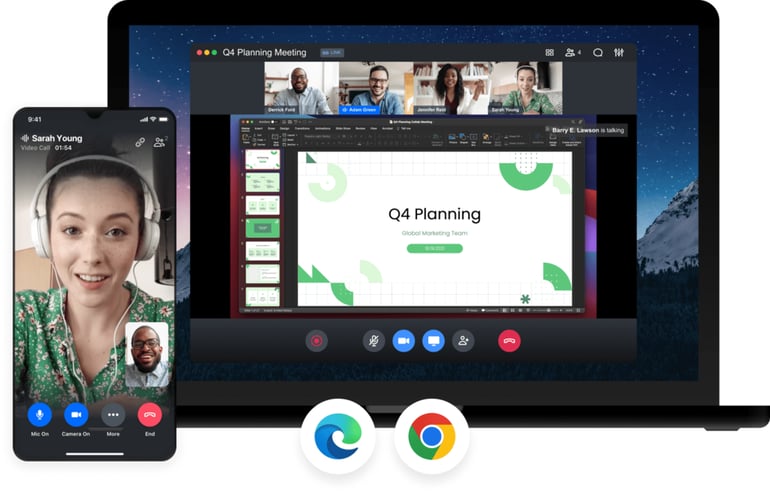
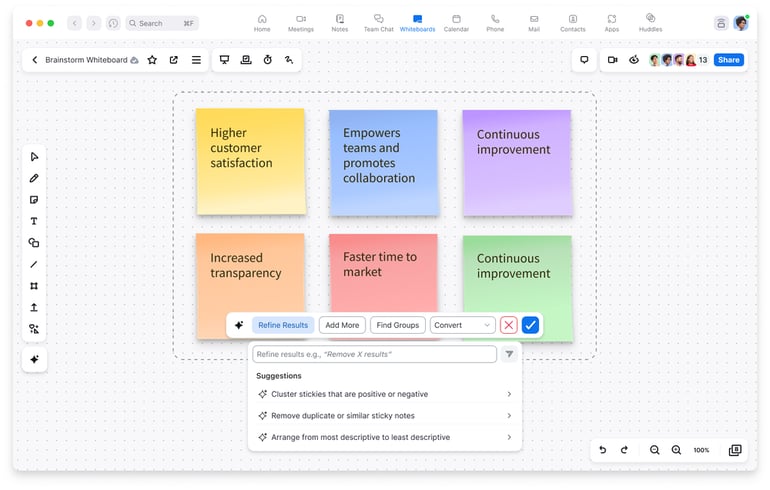
It is impossible to list the best video conferencing software without mentioning Zoom. For many of us, Zoom has been the default platform for remote work and hosting events. However, I included Zoom in this list because of its collaboration features. While many video conferencing services integrate external collaboration tools, Zoom offers built-in features such as whiteboards, team chat, and notes to support teamwork during meetings.
Like many other platforms on this list, Zoom has enhanced its artificial intelligence features over the years, now offering an AI companion that handles automated task management and content creation to help brainstorm ideas. However, Zoom only offers unlimited whiteboard access on its highest-tier plan. If you want unlimited whiteboards and access to other tools across plans, consider Webex by Cisco.
Pricing
- Basic: Free plan for one user
- Pro (1-99 users): $16.99/user billed monthly; $13.33/user/month billed annually
- Business (1-250 users): $21.99/user billed monthly; $18.33/user/month billed annually
- Enterprise: Contact sales for pricing.
Pros and cons
| Pros | Cons |
|---|---|
|
|
|
|
|
|
Features
- Meetings can accommodate up to 300 participants, with the option to upgrade to a large meeting subscription
- Virtual whiteboards and notes for team collaboration and brainstorming
- The AI companion offers team chat and meeting summaries
- Native task management across plans to gather action items and assignments
- Offers automated captions in multiple languages for diverse teams
Microsoft Teams: Best for Microsoft 365 users and virtual meeting spaces
My rating: 4.69 out of 5

Why I chose Microsoft Teams
Although many people associate Microsoft Teams with its iconic MS Teams notification and collaboration tools, I often choose this video conferencing platform for its futuristic, immersive virtual meeting spaces. While many providers offer simple features like avatars or virtual backgrounds to make online meetings more engaging, MS Teams takes it a step further by offering different types of video conferencing.
Specifically, immersive spaces are 3D meeting rooms that mimic face-to-face communication, allowing you to connect and collaborate using full-scale avatars and the option to add virtual reality. However, while many other providers on this list include AI companions in all plans, Microsoft only offers access to its CoPilot features at an extra cost. If you want to use this technology at no additional charge, consider Google Meet.
Pricing
- Free: Microsoft Teams offers a free plan for individual users that includes video conferencing.
- Microsoft Teams Essentials: $4.80 per user per month, billed monthly; $4 per user per month, billed annually.
- Microsoft 365 Business Basic: $7.20 per user per month, billed monthly; $6 per user per month, billed annually.
- Microsoft 365 Business Standard: $15 per user per month, billed monthly; $12.50 per user per month, billed annually.
- Microsoft Teams Rooms Basic: Free for up to 25 rooms. Requires a certified Teams device.
- Microsoft Teams Rooms Pro: $40 per room per month, billed annually.
Pros and cons
| Pros | Cons |
|---|---|
|
|
|
|
|
Features
- Customizable backgrounds to create a personalized space for meetings
- 30 hours of meeting time with up to 300 participants
- Meeting avatars that can represent you during virtual gatherings
- 99% uptime guarantee for more reliable service during video conferencing
- Offers up to 1TB of cloud storage for meeting recordings and transcriptions

Google Meet: Best for AI meeting assistance
My rating: 4.56 out of 5

Why I chose Google Meet
Although many of the providers on this list offer AI companions, when it comes to video conferencing and collaboration, I prefer using Google Meet. Within the Google Meet platform, Gemini provides real-time meeting transcriptions and automatically generates AI meeting notes. This is especially useful if you arrive late to a meeting and need to catch up on what was discussed.
At the same time, Google Meet requires a Gmail or Google Workspace account to host meetings, which may not be the best option for teams that already use a suite of productivity apps or those who prefer a standalone video conferencing platform. For more straightforward features, I recommend GoTo Meeting, which offers integrations with multiple workspace tools and a Smart Assistant.
Pricing
Google Meet is available with a free Google account and is also included with Google Workspace business plans.
- Free: Google Meet is included with a free Google account and supports basic video meetings.
- Business Starter: $8.40 per user per month, billed monthly; $7 per user per month, billed annually.
- Business Standard: $16.80 per user per month, billed monthly; $14 per user per month, billed annually.
- Business Plus: $26.40 per user per month, billed monthly; $22 per user per month, billed annually.
- Enterprise Plus: $42 per user per month, billed monthly; $35 per user per month, billed annually.
Pros and cons
| Pros | Cons |
|---|---|
|
|
|
|
|
|
Features
- Integration with Google Workspace enables access to collaborative documents
- Automated meeting summaries and transcripts using Google Gemini
- AI-powered real-time and context-aware translation of speakers
- Studio-quality noise cancellation and adaptive audio for hybrid meetings
- Generate virtual backgrounds and images with artificial intelligence

Webex by Cisco: Best for meeting security
My rating: 4.45 out of 5

Why I chose Webex by Cisco
For those who remember the “Zoom bombing” incidents of the early 2020s, the significance of having a secure platform for virtual meetings is clear. This is why I chose Webex as the best video conferencing software for meeting security. Webex not only offers video meetings that comply with HIPAA and BAA regulations but also provides end-to-end encryption for added safety.
Additionally, you can set meeting passwords for both phone and video conferencing and enable meeting locks to prevent unauthorized access. However, some users find Webex complex or overwhelming due to its wide range of video conferencing and telephony features. If you’re looking for a more user-friendly platform, consider using GoTo Meeting.
Pricing
- Webex Free: $0 per license per year.
- Webex Meet: $14.50 per user per month, billed monthly; $12 per user per month, billed annually.
- Webex Suite: $25 per user per month, billed monthly; $22.50 per user per month, billed annually.
- Webex Enterprise: Custom pricing. Contact sales for a quote.
Pros and cons
| Pros | Cons |
|---|---|
|
|
|
|
|
|
Features
- Administrators can create passwords for each meeting and secure the call by locking it
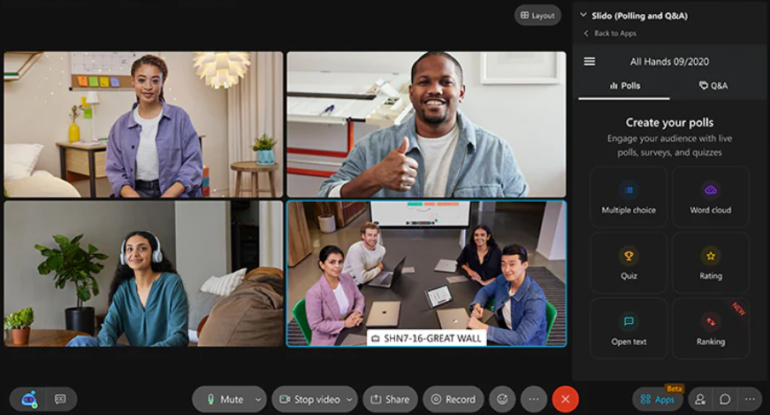
- Interactive polling, surveys, and Q&A features make meetings more interactive
- Mobile phone integrations simplify the process of attending meetings while on the go
- Collect custom analytics for each call in the Control Hub
- Enterprise plans are FedRAMP authorized for use by federal and government agencies
Zoho Meeting: Best for Webinars and event hosting
My rating: 4.22 out of 5

Why I chose Zoho Meeting
Video conferencing platforms are often the preferred choice for virtual meetings, but they are also useful for hosting large-scale events. For businesses that need to host both meetings and live events, a platform like Zoho Meeting is a great option thanks to its webinar features. With multiple scalable plans, you can select between traditional meeting conferencing and webinar plans that let you increase the number of participants for your events.
Additionally, Zoho Meeting provides customizable meeting rooms and domains, making it easier to promote your business and handle registrations for virtual meetings. However, the different plans mean that collaboration tools, like breakout rooms, are not included in every subscription. If you want more flexibility with collaboration features, consider Zoom, which also offers event hosting plans.
Pricing
Zoho Meeting offers a free plan for video meetings and webinars. Paid plans are split into two categories: meeting software for smaller video meetings and webinar software for larger online events. The prices below reflect starting monthly rates; annual discounts are also available.
-
- Standard: Starts at $2 per host per month for 10 attendees.
- Professional: Starts at $3 per host per month for 10 attendees.
-
- Standard: Starts at $9 per organizer per month for 25 attendees.
- Professional: Starts at $19 per organizer per month for 25 attendees.
- Enterprise: Starts at $79 per organizer per month for 500 attendees.
Pros and cons
| Pros | Cons |
|---|---|
|
|
|
|
|
Features
- Hold department-specific meetings or training sessions using video conferencing software
- Record meetings or webinars, then view them in your browser or download and save them for later use
- Allow participants remote access to the presenter’s screen and collaborative documents
- Display up to 50 active feeds to view more attendees during meetings or webinars
- Quickly join a meeting with the Zoho Meeting browser extensions for Chrome and Firefox
How do I choose the best video conferencing software for my team?
With so many platforms available, it’s important to carefully evaluate your options. By focusing on a few key factors, you can find a tool that not only meets your organization’s needs but also improves your team’s connection and productivity. To learn more about how to select the best video conferencing software, check out the list below to make the best choice for your business or team.
- Ease of use: The platform should be easy for all users, regardless of their technical proficiency, to join, host, and manage meetings. This includes straightforward navigation, clear controls for audio and video, and an easy process for sharing screens or documents. If not, a steep learning curve can hinder adoption and productivity.
- Meeting capacity: The solution must accommodate the required number of participants for your typical and maximum meeting sizes. Whether you primarily host one-on-one calls, small-team discussions, or large webinars with hundreds of attendees, the platform should reliably support the required participant volume without performance issues.
- Security features: Look for robust security measures, such as end-to-end encryption, password-protected meetings, waiting rooms, and administrative controls, to effectively manage participant access and ensure data security. Compliance with relevant data protection regulations (e.g., GDPR, HIPAA) is also a critical consideration for those in regulated industries.
- Integrations: The ideal video conferencing solution should integrate effortlessly with your calendar applications (e.g., Google Calendar, Outlook), project management software, CRM systems, and other communication platforms to streamline scheduling, information sharing, and follow-ups.
- Pricing: No one wants to go over their budget, so remember to evaluate the cost structure, including subscription tiers, per-user fees, and any additional charges for advanced features or increased capacity. Consider the long-term total cost of ownership and ensure it aligns with your financial planning.
- Reliability: Consistent performance with minimal downtime is crucial for uninterrupted communication. The platform should offer stable connections, low latency, and high availability to ensure meetings run smoothly without unexpected interruptions or technical glitches. Reputable providers often publish uptime guarantees and track the reliability of their service through data.
- Video quality: High-definition (HD) video quality is standard, but also consider factors like adaptive bitrates that adjust to varying internet speeds and features that optimize video for different lighting conditions, ensuring participants can see and be seen clearly.
- Advanced features: Beyond basic functionality, consider options that enhance productivity and collaboration. This might include features such as breakout rooms for group discussions, AI transcription to convert speech to text, and recording options for later review.
Review methodology
To find the best video conferencing software, I used a five-part evaluation process focused on the factors that matter most to business users:
- Core and advanced features: I reviewed essential meeting tools, including HD video, screen sharing, chat, meeting recording, calendar integrations, breakout rooms, polls, whiteboards, and webinar support. I also considered advanced capabilities such as AI meeting summaries, transcription, noise cancellation, admin controls, and security features.
- Pricing and value: I compared free plans, starting paid prices, annual discounts, participant limits, meeting duration, storage, and feature access to determine which platforms offer the strongest value for different team sizes and use cases.
- Ease of use: I evaluated interface design, setup process, meeting controls, device compatibility, browser and mobile access, and overall usability for both technical and nontechnical users.
- Customer support and user experience: I considered available support channels, documentation, reliability, product reputation, and user feedback on stability, call quality, responsiveness, and problem resolution.
- Practical business fit: I used my experience with video conferencing software and collaboration tools to assess how well each platform supports real-world needs, including hybrid meetings, client calls, internal collaboration, webinars, training sessions, and cross-functional teamwork.
Frequently asked questions (FAQs)
Is free video conferencing software good enough for team use?
It depends on the size of your team. While free video conferencing software can work well for solopreneurs or small teams, these plans often lack the advanced security features and collaboration tools needed for larger teams or company events.
What security features should the best video conferencing software have?
The best video conferencing platforms should include key security features such as end-to-end encryption (E2EE), meeting passwords, and multi-factor authentication. These elements help ensure that only authorized participants can access the meeting. Additionally, admin controls allow hosts to manage who can enter and engage, enhancing security against unauthorized access.
Which video conferencing software offers the best collaboration features in 2026?
Zoom is my top recommendation for team collaboration due to its robust features. It offers digital whiteboards and team chat for brainstorming, along with in-meeting polls and surveys that enable participants to provide feedback. This makes it an excellent choice for enhancing collaboration among remote and hybrid teams.
>

Using the same Apple Account on multiple iPhones can seem convenient, especially if you want access to the same photos, contacts, calendars, notes, files, messages, purchases, and device settings. But that convenience can quickly create privacy, security, and communication problems if the second iPhone belongs to someone else or is used for a different purpose.
For most people, the safer option is to use separate Apple Accounts and share only what needs to be shared through Family Sharing, shared iCloud folders, shared calendars, shared photo libraries, or app-specific collaboration tools. If you do decide to use one Apple Account on multiple iPhones, review the settings below carefully before relying on the second device.
Use Family Sharing instead of sharing one Apple Account
The biggest mistake is assuming that two people need to use the same Apple Account to share apps, subscriptions, storage, or location information. In most cases, they do not.
Family Sharing is usually the better choice for families or trusted groups that want to share Apple services without combining personal data. With Family Sharing, each person keeps their own Apple Account while sharing access to services such as iCloud+, Apple Music, Apple TV, purchases, location sharing, and parental controls.
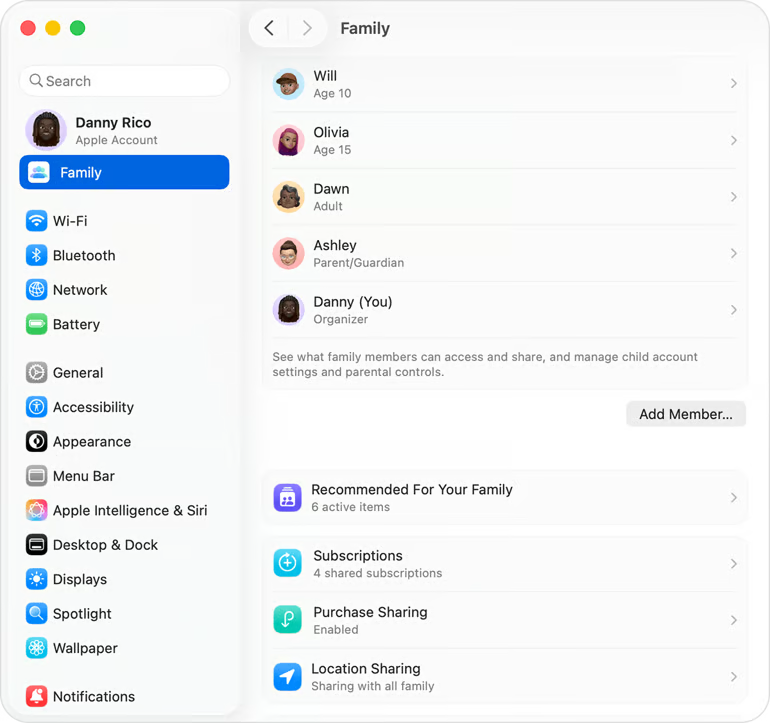
This matters because one shared Apple Account can also share things you may not want another person to see, including:
- Messages and FaceTime contact points.
- Photos and videos.
- Contacts and calendars.
- Notes and reminders.
- iCloud Drive files.
- Safari data.
- App data.
Other settings, such as Find My locations, Wallet information, and account recovery options, can also become more complicated when multiple people use the same account.
If the second iPhone is being used by a partner, child, assistant, employee, or contractor, create or use a separate Apple Account instead. Then share only the specific services, files, calendars, folders, or subscriptions that the person needs.
Mistake 1: Letting personal data sync to the wrong iPhone
When you sign in to a second iPhone with the same Apple Account, iCloud may begin syncing account data and app data depending on the settings enabled on that device. That can make information from the first phone appear on the second phone.
This may include contacts, calendars, reminders, notes, photos, files, Safari data, passwords, app data, and more. For a second personal iPhone, that may be exactly what you want. For a phone used by someone else, it can create serious privacy issues.
To review iCloud syncing on an iPhone:
- Open Settings.
- Tap your name.
- Tap iCloud.
- Review the apps and services using iCloud.
- Tap Show All if needed.
- Turn syncing on or off for individual apps and services.
Pay special attention to Photos, iCloud Drive, Contacts, Calendars, Notes, Reminders, Mail, Safari, Health, Passwords, and any third-party apps that store sensitive information in iCloud.
Mistake 2: Sending or receiving Messages from the wrong number
Messages can become confusing when two iPhones use the same Apple Account. A message meant for one phone number may appear on another iPhone, or a reply may be sent from the wrong phone number or email address.
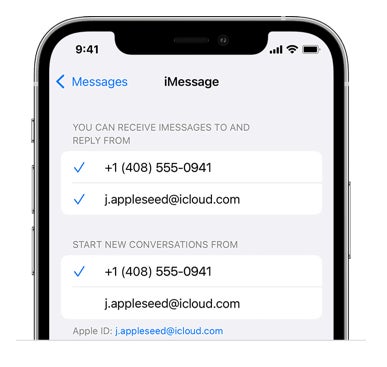
This is especially risky if the second phone belongs to another person or is used for work. A personal message could appear on a business device, or a business reply could be sent from a personal number.
To check Messages settings:
- Open Settings.
- Tap Apps.
- Tap Messages.
- Tap Send & Receive.
- Review the phone numbers and email addresses that can send and receive iMessages.
- Select only the numbers and addresses that should be active on that iPhone.
- Check the Start New Conversations From setting.
Repeat this process on both iPhones. Do not assume the settings are correct just because the first phone was already configured.
Mistake 3: Receiving FaceTime calls on the wrong device
FaceTime can create similar problems. If the same Apple Account is used on multiple iPhones, FaceTime calls may ring on both devices or use the wrong phone number or email address.
To check FaceTime settings:
- Open Settings.
- Tap Apps.
- Tap FaceTime.
- Review the phone numbers and email addresses listed under You Can Be Reached By FaceTime At.
- Select only the entries that should apply to that device.
- Review the caller ID setting if available.
If the second iPhone is not meant to receive FaceTime calls for the primary account holder, disable the extra contact points or turn off FaceTime on that device.
Mistake 4: Forgetting that iCloud Photos may sync automatically
Photos are one of the most sensitive categories of data that can appear on another iPhone. If iCloud Photos is enabled on both devices, photos and videos may sync across both iPhones.
That can be useful for someone who owns two personal iPhones. It is a problem if the second device is used by another person or is intended for a limited purpose.
To review iCloud Photos:
- Open Settings.
- Tap your name.
- Tap iCloud.
- Tap Photos.
- Confirm whether Sync this iPhone is turned on or off.
If you only need to share selected photos, use a shared album or iCloud Shared Photo Library instead of syncing the entire photo library to another device.
Mistake 5: Sharing files, notes, and app data unintentionally
iCloud can sync much more than photos. Notes, iCloud Drive files, Pages documents, Numbers spreadsheets, Keynote presentations, third-party app files, and other app data may become available on the second iPhone.
This is one of the main reasons sharing one Apple Account is risky in work situations. A second phone could gain access to files, drafts, private notes, financial documents, or app data that were never meant to be shared.
Before signing in to a second iPhone, decide what the device actually needs. If the goal is collaboration, use targeted sharing instead of account sharing. For example:
- Share a specific iCloud Drive folder.
- Share a calendar.
- Share an individual note.
- Collaborate in Pages, Numbers, or Keynote.
- Use Microsoft 365, Google Workspace, Slack, or another business collaboration tool.
- Use Apple Business Manager or managed accounts for workplace devices.
A shared account is rarely the cleanest way to collaborate.
Mistake 6: Overlooking Find My and location privacy
Find My is helpful when you need to locate a lost device, but it can also reveal location information across devices connected to the same Apple Account.
If two iPhones are signed in with the same Apple Account, the user on one device may be able to see the location of the other. This may be acceptable for someone managing their own devices. It is not appropriate for many work, family, or shared-device scenarios unless everyone understands and agrees to the setup.
To review Find My settings:
- Open Settings.
- Tap your name.
- Tap Find My.
- Review Find My iPhone, Find My network, and Send Last Location.
- Review any location-sharing settings.
If you want to share location with a family member, use Family Sharing or location sharing with separate Apple Accounts rather than giving another person access to your full Apple Account.
Mistake 7: Ignoring Wallet and Apple Pay settings
Wallet and Apple Pay settings should always be reviewed before using the same Apple Account on another iPhone. Payment cards, passes, Apple Cash, transit cards, and purchase authorization settings can create financial and privacy concerns if they appear on a device used by someone else.
To review Wallet and Apple Pay:
- Open Settings.
- Tap Wallet & Apple Pay.
- Review payment cards, Apple Cash, transaction defaults, shipping address, email, and phone settings.
- Remove any cards or passes that should not be available on that device.
Do not assume that Apple Pay is harmless just because purchases require Face ID, Touch ID, or a passcode. If the second iPhone is used by someone else, the better approach is for that person to use their own Apple Account and payment methods.
Mistake 8: Weakening Apple Account security
Using one Apple Account on multiple iPhones expands the number of devices tied to that account. That can affect security prompts, trusted devices, verification codes, and account recovery.
Before adding another iPhone, review the account’s security settings:
- Use two-factor authentication.
- Use a strong device passcode.
- Enable Face ID or Touch ID when available.
- Review trusted phone numbers and devices.
- Remove old or unknown devices.
- Set up account recovery options.
- Keep all devices updated.
This is especially important if the second iPhone is older, shared, used by someone else, or not physically controlled by the account owner.
Mistake 9: Misunderstanding Advanced Data Protection
Advanced Data Protection for iCloud can add stronger protection for many categories of iCloud data, including iCloud Backup, Photos, Notes, and more. But it also increases the importance of account recovery planning.
If Advanced Data Protection is enabled, Apple cannot recover end-to-end encrypted data for you. You must be able to recover access using your device passcode, recovery contact, or recovery key.
Before adding a second iPhone to an Apple Account with Advanced Data Protection enabled, confirm:
- The device is updated and compatible.
- The device has a strong passcode.
- Recovery contacts or a recovery key are set up correctly.
- The person using the second device understands the security implications.
- You still control the trusted devices tied to the account.
With that said, Advanced Data Protection is powerful, but it is not a substitute for good account hygiene. It works best when every trusted device is secure and under the account owner’s control.
Mistake 10: Using one Apple Account for business devices
Sharing one Apple Account across business devices is usually a bad idea. It can mix personal and company data, expose private information, create offboarding problems, and make it harder to separate work access from personal services.
For workplace scenarios, consider alternatives such as:
- Apple Business Manager.
- Managed Apple Accounts.
- Mobile device management software.
- Separate Apple Accounts for each employee.
- App-level collaboration tools.
- Shared mailboxes, calendars, or cloud folders.
- Role-based access controls in business apps.
If an assistant or employee needs access to files, calendars, email, or documents, give them access through the appropriate business tool. Do not give them your Apple Account credentials or sign their iPhone in to your Apple Account unless there is a specific, temporary, and well-understood reason.
When using one Apple Account on multiple iPhones makes sense
There are still situations where one Apple Account on multiple iPhones may make sense. For example, one person may own a personal iPhone and a backup iPhone, or may temporarily move between two personal devices.
Even then, review the setup carefully. Make sure each phone has the right Messages, FaceTime, iCloud, Find My, Wallet, and security settings. Also confirm that both devices are physically secure and that no one else has access to them.
A shared Apple Account is most appropriate when the same person controls both iPhones. It becomes much riskier when two different people use the devices.
Quick review before adding a second iPhone
Before signing in to a second iPhone with the same Apple Account, check these key areas:
- Messages and FaceTime settings.
- iCloud Photos and iCloud Drive syncing.
- Contacts, calendars, and notes.
- Find My location settings.
- Wallet and Apple Pay information.
- Trusted devices and account recovery options.
- Device passcodes and software updates.
A few minutes of review can prevent privacy, security, and communication problems later.
Frequently asked questions
Should a business use one Apple Account for multiple iPhones?
Generally, no. Businesses should use separate Apple Accounts, managed accounts, mobile device management software, Apple Business Manager, or app-level access controls. Sharing one Apple Account across work devices can mix personal and business data and make security, offboarding, and access management harder.
What should I check before adding a second iPhone to my Apple Account?
Review Messages, FaceTime, iCloud Photos, iCloud Drive, Contacts, Calendars, Notes, Find My, Wallet, Apple Pay, trusted devices, recovery options, passcodes, and software updates. These settings determine what data appears on the second iPhone and how much account access that device has.
Will my messages show up on another iPhone using the same Apple Account?
They can. If Messages is enabled for the same phone numbers or email addresses on both iPhones, iMessages may appear on both devices. To prevent this, review Settings > Apps > Messages > Send & Receive on each iPhone and select only the numbers and email addresses that should be active on that device.
Will my photos sync to another iPhone using the same Apple Account?
They can if iCloud Photos is enabled on both devices. To check this setting, open Settings, tap your name, select iCloud, then tap Photos. If you only want to share selected photos, use a shared album or iCloud Shared Photo Library instead of syncing the full photo library.
Bottom line: Plan carefully before sharing an Apple Account
Using the same Apple Account on multiple iPhones can save time, but it can also expose messages, photos, files, locations, payment details, and account recovery controls. The safest default is simple: use one Apple Account per person, and share only the content or services that need to be shared.
If you need shared purchases, subscriptions, iCloud storage, location sharing, or parental controls, start with Family Sharing. If you need to collaborate on work, use business tools or managed accounts. If you truly need to use one Apple Account on two iPhones, review every major Apple Account, iCloud, Messages, FaceTime, Find My, Wallet, and security setting before handing over or relying on the second device.
>

‘Spider-Noir’ Costume Designer Interview — Craft Roundtables

Austin Powers 4: Franchise Stars Discuss Chances for Mike Myers Sequel

Kane heads England into 2-1 lead against Croatia

-

 Fashion9 years ago
These ’90s fashion trends are making a comeback in 2017
-
Fashion9 years ago
According to Dior Couture, this taboo fashion accessory is back
-
Fashion9 years ago
Model Jocelyn Chew’s Instagram is the best vacation you’ve ever had
-
Fashion9 years ago
Your comprehensive guide to this fall’s biggest trends
-
Fashion9 years ago
A photo diary of the nightlife scene from LA To Ibiza
-
Fashion9 years ago
Emily Ratajkowski channels back-to-school style
-
Fashion9 years ago
9 Celebrities who have spoken out about being photoshopped
-
Fashion9 years ago
The tremendous importance of owning a perfect piece of clothing
