
Tech
What Is a Gantt Chart and How Does It Work?


Key takeaways:
- A Gantt chart is a horizontal bar chart that illustrates a project schedule, showing the start and end dates of individual tasks or activities and their dependencies.
- It allows project managers to visualize the project’s critical path, the sequence of tasks that must be completed on time to keep the project on schedule.
- A Gantt chart is best used in linear projects where tasks follow a sequential order.
The first time I had to present a multiphase project to a stakeholder, a task list didn’t cut it. I needed one visual that showed the project timeline, task sequence, and key dependencies without making me narrate every detail. A Gantt chart gave me that view, helping me show how one task affected another and where delays could ripple through the project.
Despite the name, the earliest version of this kind of chart is often credited to Polish engineer Karol Adamiecki, who developed a scheduling tool called the harmonogram in the 1890s. Henry Gantt later popularized a similar version in the early 1900s, which is why the format became known as the Gantt chart.
In this guide, I’ll explain what a Gantt chart is, when to use one, and how to build one with easy-to-follow examples and templates.
What is a Gantt chart?
A Gantt chart is a visual scheduling tool that lays out tasks against a timeline using horizontal bars. The length of each bar represents the duration of the task, and connecting lines show which tasks depend on others finishing first. This gives teams a shared view of what needs to be done and in what order.
Why project managers use Gantt charts
Project managers use Gantt charts because they make complex schedules easier to understand and manage. Instead of reviewing separate task lists and status updates, you can see the entire project timeline in one place.
- Visualize project schedules: See task start and end dates alongside durations on a single timeline.
- Track project progress: Compare timelines with actual progress to spot potential delays in advance.
- Monitor milestones: Keep important deadlines visible and keep deliverables on track.
- Communicate with stakeholders: Share a visual project overview that is easier to understand than spreadsheets or task lists.
- Identify bottlenecks early: Quickly see which tasks could delay the project if they fall behind schedule and how it affects the rest of the project.
How a Gantt chart works
Each horizontal bar in a Gantt chart represents a task, with its position and length indicating when it starts, when it ends, and how long it will take to complete.
Key components of a Gantt chart
Gantt charts use a mix of bars, lines, markers, shading, and labels to communicate project information quickly. These visual symbols help teams understand what needs to happen, when it needs to happen, who owns it, and which tasks depend on others.
- Tasks: The individual activities required to complete the project. These appear on the left side of the chart.
- Timeline: The horizontal scale that shows days, weeks, or months, depending on the project’s duration.
- Task duration: The length of each bar indicates how much time is allocated for a task.
- Dependencies: Lines connecting tasks show relationships between activities and identify work that must be completed before another task can begin.
- Milestones: Important project checkpoints represented by diamond-shaped markers on the timeline.
- Progress indicators: Shaded sections within task bars show how much work has been completed.
- Assignees: Many modern Gantt charts display the team member or department responsible for each task.
Picture this: Take a website launch as an example. Design is listed as a task with a two-week bar. Development sits right after it, connected by a dependency line since coding can’t start until the designs are final, and any delay in design could push back the entire project schedule.
A milestone marks the launch date at the end. As work progresses, the bars fill in. If the design runs three days late, the dependency line immediately shows that it could back development shifts, too. This makes it clear that any delay in design could push back the entire project schedule
When to use a Gantt chart (& when not to)
Gantt charts are powerful planning tools, but they are not the best solution for every project. They work best when schedules, dependencies, and deadlines need close monitoring. For simpler projects or fast-moving workflows, a different tool may be easier to manage.
| Your project has multiple phases and interconnected tasks. | Your project consists of a few independent tasks with no dependencies. |
| Task sequencing is important, and delays could affect future work. | You only need a basic to-do list or checklist. |
| You need to track deadlines, milestones, and progress over time. | You want a quick overview of major dates without task-level details. |
| The project spans several weeks or months. | The project is short-term and doesn’t require detailed scheduling. |
Gantt Chart vs other project tools
Besides Gantt charts, project managers also use Kanban boards, project roadmaps, and PERT charts to track progress. The comparison table below compares their key features and use cases.
| Gantt chart | ||||
| Timeline | ||||
| Kanban Board | ||||
| PERT Chart |
- Timeline views look similar to Gantt charts but are lighter on structure. They show tasks across dates without enforcing dependencies or critical path logic. They work well for simple scheduling or content calendars where sequencing matters less than knowing what’s due when.
- Kanban boards organize work as cards moving across columns commonly labeled as To Do, In Progress, and Done. They’re built for teams prioritizing flow over fixed schedules. If your work is continuous, hard to predict upfront, or sprint-based, Kanban is a better fit. Gantt charts, by contrast, assume you know the tasks, sequence, and duration before the project starts.
- PERT charts also map task dependencies, but they represent tasks as nodes in a network diagram rather than bars on a timeline. PERT is useful when task durations are uncertain, and you need to calculate best-case, worst-case, and expected timelines.
How to build a simple Gantt chart
Creating a Gantt chart is easier than it looks, especially if you’re using project management software that can generate one from your existing schedule.
Whether you’re building it manually in a spreadsheet or switching to a Gantt view inside a project management tool, the goal is the same: map your project tasks on a timeline so you can see what needs to happen, when it needs to happen, and how tasks connect.
Here’s how to put one together:
1. List your tasks
Write every task the project requires, in the order they need to happen. For large deliverables, break them into smaller activities. For example, a website redesign project might include planning, design, development, testing, and launch tasks.
2. Estimate task durations
Determine how long each task will take to complete. Use estimates based on available resources and previous project experience.
3. Set task start and end dates
Assign dates to each task based on your deadline and resources. These dates will determine the length and position of each task bar on the chart.
4. Identify dependencies
Go through your task list and note which tasks can’t start until another task finishes. These connections will shape your timeline more than anything else.
5. Plot the tasks on a timeline
In a spreadsheet, create a column for each day, week, or month, depending on your project length. To form the bars, shade the cells that fall within each task’s start and end dates.
6. Mark your milestones
Add a marker, a different color or symbol, for any project checkpoints, such as a major deliverable, approval date, or a target deadline.
7. Assign owners
Add a column for the person or team responsible for each task so everyone understands their role and accountability within the project.
8. Update it as work progresses.
Once work begins, update task completion percentages and adjust schedules as needed. Most projects set a weekly cadence to update progress.
Gantt chart templates & examples
I’ve pulled together Gantt chart examples from top project management platforms. Whether you’re building your first chart or evaluating which tool fits your team, use these Gantt chart templates as your starting point.
1. Event campaign Gantt chart by monday work management
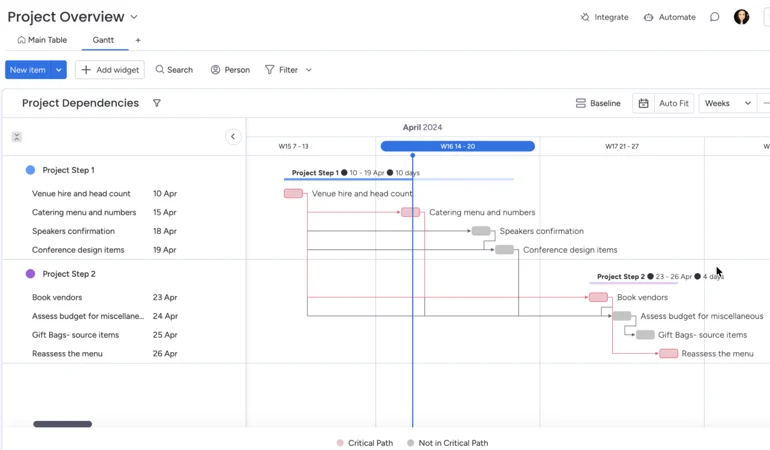
What stands out to me in monday’s Gantt view is the emphasis on dependencies rather than task durations alone. The project example uses two phases with connected activities, making it easy to trace how work flows from venue planning to vendor management. Colored dependency lines and critical path indicators help distinguish tasks that directly influence the schedule.
2. Construction Gantt chart by ClickUp
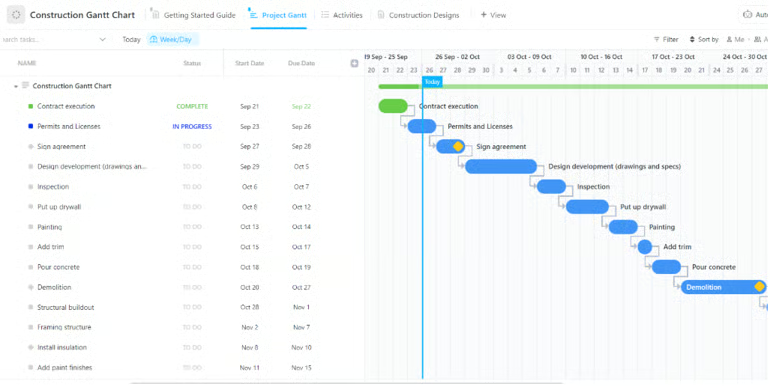
I like how ClickUp’s Gantt chart places the task list and schedule side by side, which makes it easy to connect dates with the timeline. In this construction Gantt view, each task appears as a horizontal bar with dependency lines showing the order of work from contract execution through demolition. Status labels such as Complete, In Progress, and To Do add context without cluttering the chart.
3. Go-To-Market strategy Gantt chart by Wrike
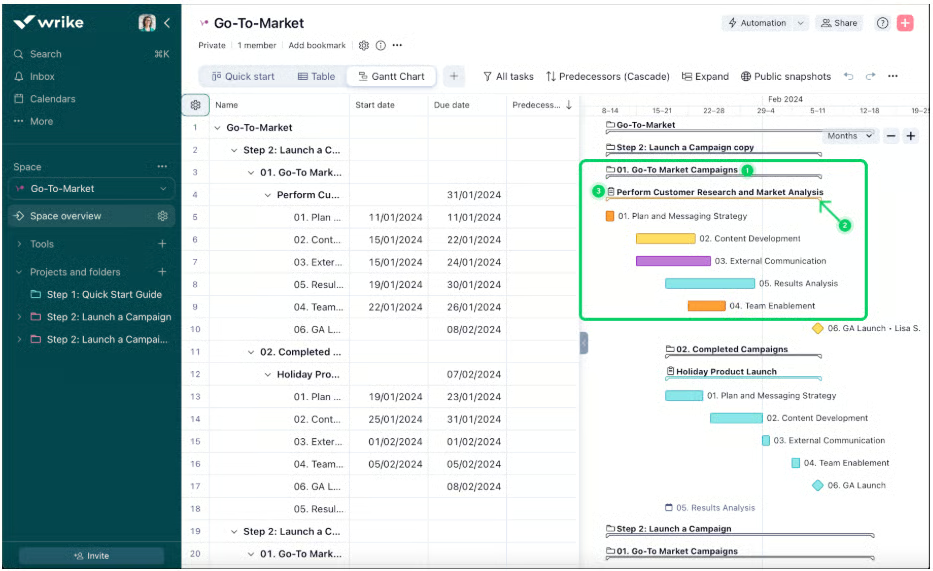
4. Gantt chart dashboard widget by Smartsheet
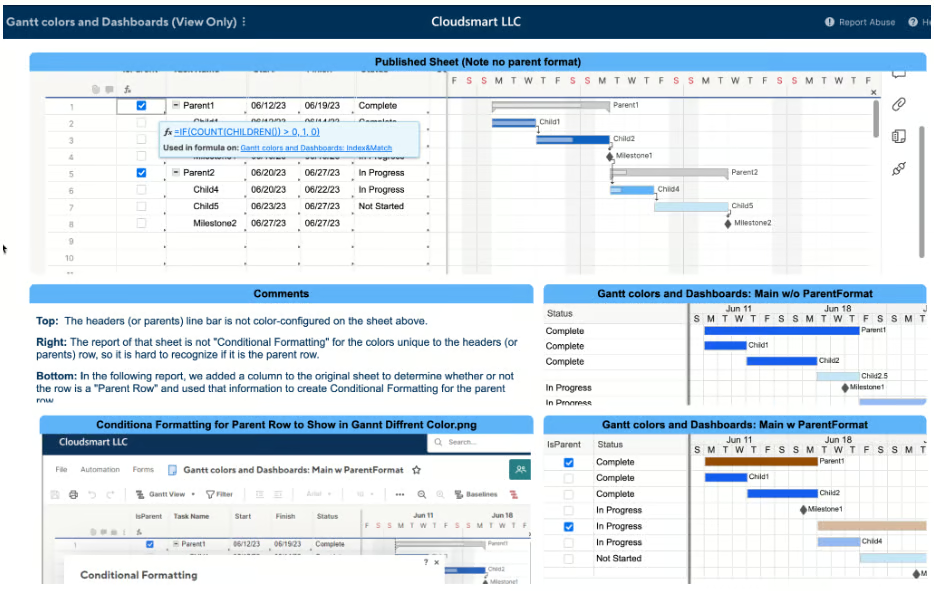
Smartsheet’s Gantt view combines spreadsheet-style data with a Gantt chart widget, which feels familiar if you already work in spreadsheets. The example organizes parent tasks, child tasks, and milestones in a hierarchy, with corresponding bars displayed across the timeline. Different colors separate project phases and statuses, making it easier to distinguish related work.
FAQs
What is the difference between a timeline and a Gantt chart?
A timeline shows you what’s scheduled and when. That’s enough for any situation where tasks run independently, and the main question is simply “what’s due this week.” A Gantt chart shows not just when tasks happen but how they connect, who owns each task, and which tasks lie on the critical path.
Is a Gantt chart still used today?
Yes, Gantt charts remain one of the most widely used project management tools. Modern project management software has expanded its capabilities with real-time updates, dependency tracking, resource management, and customizable Gantt chart templates.
How do you read a Gantt chart?
Start by reviewing the tasks listed on the left side of the chart. Then look at the horizontal bars to see when each task starts, ends, and how long it lasts. Dependency lines and milestones help you understand task relationships and deadlines.
>
Intel may have just landed the customer that could change everything.
After years of trying to convince the industry it can manufacture advanced chips for other companies, Intel appears to have secured a major vote of confidence from Apple. President Donald Trump announced Thursday that the iPhone maker would work with Intel to design and manufacture chips in the US, sending Intel’s shares soaring.
The significance extends beyond a single deal. If the partnership materializes, it would mark a major milestone in Washington’s effort to expand domestic chip production while giving Apple another manufacturing option at a time when chip supply chain reliability has become a strategic priority.
A partnership with a backdrop
The announcement comes at an interesting time for Intel. For years, the chipmaker has been trying to reinvent itself as a leading contract manufacturer capable of producing advanced chips for other companies, a difficult task in a market largely dominated by Taiwan Semiconductor Manufacturing Company (TSMC).
Since returning to office, President Trump has repeatedly backed initiatives aimed at expanding domestic chip production, a move that places Intel among the centerpiece companies in that effort.
The US government’s acquisition of a 10% stake in Intel marked one of the clearest signs of that support. Since then, the company has secured a series of high-profile wins carrying the administration’s fingerprints.
That includes a foundry manufacturing agreement with Terafab and a $5 billion commitment from Nvidia.
Against that backdrop, a potential Apple partnership would be one of Intel’s most prominent foundry wins yet.
Must-read Apple coverage
Shared benefits for all
In April, Apple CEO Tim Cook told Reuters that “there’s just a little less flexibility in the supply chain at the moment for getting more parts.” That comment offers a possible clue as to why Apple may be exploring new manufacturing relationships, even though the US government is involved in creating the partnership.
As demand for AI consumes more advanced chipmaking capacity, even companies with deep supplier relationships are looking for additional options. For Apple, Intel could provide access to more US-based manufacturing capacity and a hedge against future supply constraints.
For Intel, the stakes appear even higher. Getting a company like Apple on its side not only means higher sales revenue but also solid proof that Intel can deliver the kinds of chips favored by tech companies in an increasingly AI-focused world.
After the early Thursday announcement, Intel shares reportedly jumped 7%, while Apple’s shares rose 0.8%. When the US government acquired its Intel stake in 2025, the company was valued at about $100 billion. Intel’s market capitalization is now about $600 billion.
A glimpse into the future
Whether the deal is finalized, when supply is set to commence, or which specific chips Intel will make for Apple remain open questions, as both companies have yet to respond to the president’s Truth Social post. Yet even at this stage, the announcement highlights a broader shift underway across the semiconductor industry.
For years, advanced chip manufacturing has been concentrated in the hands of a few overseas players. Not only could this partnership help fragment that concentration, but it could also set a solid example that other American companies and industries will follow.
Also read: A Trump T1 teardown found hardware similarities with HTC’s U24 Pro, raising new questions about the phone’s origins.
>

Your earbuds should not become someone else’s microphone.
Apple released Beats Firmware Update 1B211 on June 16 to fix a Bluetooth vulnerability in Beats Studio Buds that could have let an attacker within range listen through the earbuds’ microphone while the device was unpaired and actively seeking a connection.
The issue, tracked as CVE-2025-20701, highlights why wireless accessories should be part of routine device security checks, especially when they are used near work phones, laptops, calls, and voice assistants.
What Apple fixed
Apple patched a Bluetooth vulnerability in Beats Studio Buds that could have exposed the earbuds’ microphone under specific pairing conditions.
In its security advisory, Apple said an attacker within Bluetooth range may have been able to listen through the microphone of a device that was not yet paired and was actively seeking a pairing request.
The flaw is tracked as CVE-2025-20701. Apple described it as a vulnerability in open source code and said Apple software was among the affected projects. The company credited Dennis Heinze and Frieder Steinmetz of ERNW GmbH for reporting the issue.
The Hacker News reported that CVE-2025-20701 involved incorrect authorization in the Airoha Bluetooth audio SDK, which could allow a Bluetooth audio device to pair without user consent. The publication also reported that the vulnerability carried a CVSS score of 8.8.
ERNW researchers had previously discussed related Airoha system-on-a-chip flaws at the TROOPERS security conference in Germany. According to The Hacker News, the researchers said many of the vulnerabilities could allow attackers to take over headphones via Bluetooth without authentication or pairing.
Must-read security coverage
Why the attack window is limited
This is not the kind of remote attack that can reach someone from across the internet.
An attacker would need to be within Bluetooth range, and the Beats Studio Buds would need to be unpaired and actively looking for a pairing request.
Malwarebytes explained that the flaw affected the authentication process during pairing. In a normal pairing flow, headphones and a phone establish trust before sensitive functions, such as microphone access, become available. In this case, a nearby attacker could potentially pose as a legitimate pairing partner before the user finishes connecting the earbuds.
That makes the issue more relevant to targeted attacks than to broad criminal campaigns. Opportunistic attackers are still more likely to use phishing, password theft, or credential stuffing than specialized Bluetooth attacks.
The concern is sharper for people who handle sensitive calls or data in public spaces, including executives, journalists, public officials, security staff, and employees working near shared devices.
How to check the update
Apple said Beats firmware updates are delivered automatically while the headphones are paired with and in Bluetooth range of an iPhone, iPad, or Mac.
There is no manual “update now” button for Beats Studio Buds. Users can check the installed firmware version in Bluetooth settings.
On an iPhone or iPad, go to Settings, then Bluetooth, and tap the information button next to the Beats Studio Buds. On a Mac, go to System Settings, then Bluetooth, and check the information next to the headphones.
The firmware version should show 1B211 after the update has been applied. If an older version appears, users should keep the earbuds charged, connected, and near their Apple device until the update installs.
For IT teams, the broader lesson is to include peripherals in security guidance.
Bluetooth accessories may sit outside traditional endpoint management, but they still interact with microphones, devices, accounts, and conversations that organizations need to protect.
Read next: Apple pushed a rare patch after researchers flagged a “DarkSword” flaw that could affect millions of iPhones.
>

I reviewed five self-hosted photo and video gallery options based on ease of setup, media management features, sharing tools, privacy controls, mobile support, and overall fit for personal or small-team use.
SEE: The definition of open source can be controversial, with some commercial models claiming the title.
NextCloud
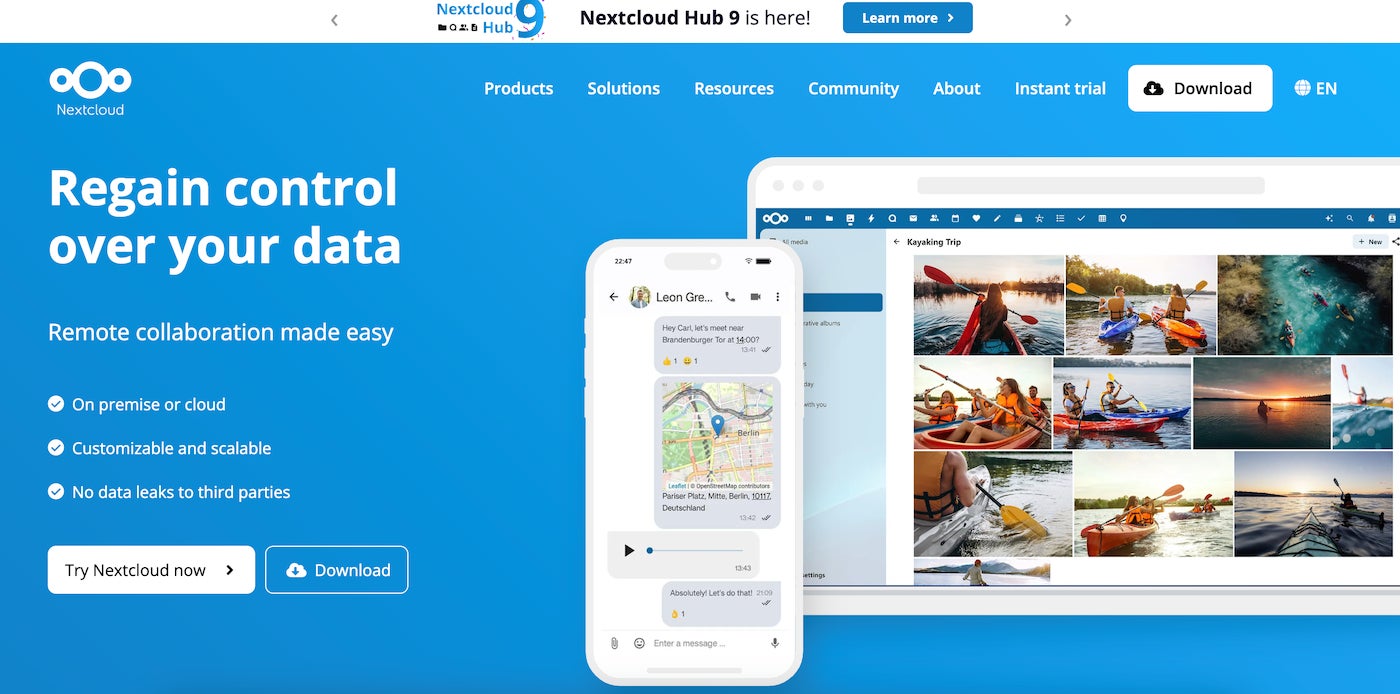
Nextcloud is an open-source content collaboration platform that can function as a self-hosted photo and video storage option alongside files, documents, chat, office tools, automation, and other collaboration features. For media libraries, Nextcloud Files provides self-hosted storage, syncing, sharing, and access across desktop, mobile, and web apps, making it a good fit for users who want photo and video management as part of a broader private cloud setup.
Why I chose Nextcloud
I chose Nextcloud because it offers the most complete self-hosted ecosystem on this list. While dedicated gallery tools may provide a more focused photo-browsing experience, Nextcloud stands out for its file syncing, access controls, mobile apps, sharing features, and ability to support more than just media storage.
Pricing
Nextcloud’s open-source self-hosted software is free to use, though you will need to provide your own server, storage, backups, and maintenance. Enterprise plans with professional support are also available, with pricing starting at €71.29 per user per year for 100 users.
Photoprism
PhotoPrism is an AI-powered, self-hosted photo app for organizing and searching large media libraries. It can run at home, on a private server, or in the cloud, and it supports browsing photos and videos, detecting duplicates, handling RAW files, searching with filters, viewing location maps, playing Live Photos, recognizing faces, and automatically classifying images by content and location. Its privacy-first approach also makes it appealing for users who want modern photo management features without handing their media library to a major cloud provider.

Why I chose PhotoPrism
I chose PhotoPrism because it offers one of the strongest photo-focused experiences among self-hosted options. Its AI tagging, search, facial recognition, maps, RAW support, and duplicate handling make it a good fit for users who want smarter photo organization while still keeping control over where their files are stored.
Pricing
PhotoPrism Community is free for self-hosting. Paid self-hosted plans start at €2 per month for Essentials and € per month for Plus.
Piwigo
Piwigo is an open-source photo management platform for organizing, managing, and sharing photo libraries on the web. It is designed for individuals, teams, and organizations, and it is especially strong for large collections with thousands or even hundreds of thousands of images. Users can self-host Piwigo for free, choose cloud hosting, and extend the platform with plugins and themes.

Why I chose Piwigo
I chose Piwigo because it is one of the most established self-hosted photo management tools available. It has been around since 2002, supports high-volume photo libraries, and offers open-source flexibility through plugins and themes, making it a strong choice for users who need a mature, scalable photo gallery platform.
Pricing
Piwigo is free for self-hosting. Paid support plans for self-hosted deployments start at €39 per month for Light, €79 per month for Standard, and €150 per month for Premium, billed annually and excluding VAT.
Lychee
Lychee is a free, open-source photo management tool that runs on your own server or web space. It lets users upload, organize, rename, describe, search, view, and share photos from a browser-based interface, with support for albums, password-protected sharing, full-screen viewing, batch editing, and EXIF and IPTC metadata. Lychee is a strong fit for users who want a fast, simple, and privacy-friendly self-hosted photo library without storage limits, compression, or unnecessary complexity.

Why I chose Lychee
I chose Lychee because it is one of the simplest self-hosted photo gallery options to set up and use. Its clean interface, browser-based management tools, album sharing, metadata support, and password-protected galleries make it a good choice for photographers and casual users who want control over their photo library without a more complex collaboration platform.
Pricing
Lychee is free and open source for self-hosting.
LibrePhotos
LibrePhotos is a free, open-source, self-hosted photo management service for storing, organizing, and accessing your photo library across devices and operating systems. It supports major file formats, including RAW images, HEIC, HEIF, and videos, and includes AI-powered features for users who want smarter photo organization without giving up control of their personal data.

Why I chose LibrePhotos
I chose LibrePhotos because it offers a privacy-friendly, open-source alternative to commercial photo management services. Its broad file format support, self-hosted setup, and AI-powered organization features make it a good fit for users who want more control over their media library without paying software subscription fees.
Pricing
LibrePhotos is free and open source for self-hosting, though you will need to cover your own hardware, VPS, storage, backup, and maintenance costs.
How I chose the best self-hosted photo storage options
I selected these self-hosted photo storage options based on ease of setup, photo and video management features, privacy controls, sharing tools, file format support, platform maturity, and overall value for individuals, families, small teams, and organizations. I also considered whether each tool served a clear use case, such as full private cloud storage, AI-powered photo organization, high-volume photo libraries, simple album sharing, or open-source photo management.
The goal was to include options that give users more control over where their media is stored without losing the features people expect from cloud photo services. Strong self-hosted photo storage tools should make it easier to upload, organize, browse, search, and share photos and videos while still giving users ownership over their files, storage setup, and privacy.
Bottom line: Self-hosted storage gives you more control over your media
Self-hosted photo storage can give you many of the same tools as cloud photo services, including albums, sharing, search, and facial recognition, while giving you more control over where your photos and videos are stored. If you already have the server space, storage, and willingness to handle setup and maintenance, self-hosting can be a practical way to manage your media library without relying entirely on a third-party cloud provider.
FAQs
What is a self-hosted photo and video gallery?
A self-hosted photo and video gallery allows users to store and share media on their own hardware or virtual server. It provides an alternative to smartphone photo apps or social media.
What are the system requirements for hosting my photo gallery?
Different self-hosted photo galleries have different requirements. Most services will have documentation available.
Nextcloud, for instance, offers cloud hosting as part of some of its plans. Photo hosting generally doesn’t require a lot of RAM — PhotoPrism can be installed on a Raspberry Pi 4 with 4 GB of RAM. LibrePhotos requires 10 GB of HDD Space to operate through Docker Compose.
Is self-hosted photo storage better than cloud photo storage?
Self-hosted photo storage is better if you want more control over your media, privacy, storage setup, and long-term costs. It can also be a good fit if you already have a home server, NAS, or VPS and are comfortable handling setup and maintenance.
Cloud photo storage is usually easier for casual users because the provider handles backups, syncing, mobile apps, and infrastructure. If convenience matters more than control, a cloud service may still be the better choice.
Looking for broader cloud storage options? Compare the best Dropbox alternatives for 2026, including free storage, security, collaboration features, pricing, and business file-sharing tools.
Megan Crouse updated this article.
>

How to watch Storm vs. Mercury: TV channel and streaming options for June 20

2026 FIFA Men’s World Cup: How Germany can reach the Round of 32
2026 FIFA Men’s World Cup: How Germany can reach the Round of 32

-

 Fashion9 years ago
These ’90s fashion trends are making a comeback in 2017
-
Fashion9 years ago
According to Dior Couture, this taboo fashion accessory is back
-
Fashion9 years ago
Model Jocelyn Chew’s Instagram is the best vacation you’ve ever had
-
Fashion9 years ago
Your comprehensive guide to this fall’s biggest trends
-
Fashion9 years ago
A photo diary of the nightlife scene from LA To Ibiza
-
Fashion9 years ago
Emily Ratajkowski channels back-to-school style
-
Fashion9 years ago
9 Celebrities who have spoken out about being photoshopped
-
Fashion9 years ago
The tremendous importance of owning a perfect piece of clothing
