Do you really need to pay for Adobe Acrobat just to edit a PDF? If your everyday tasks are editing, merging, OCR and signing, the answer is probably no. How-To Geek tested five free, actively maintained, cross-platform desktop tools, and found that together they cover nearly everything most people do with PDFs, without a subscription or pushy upsells.
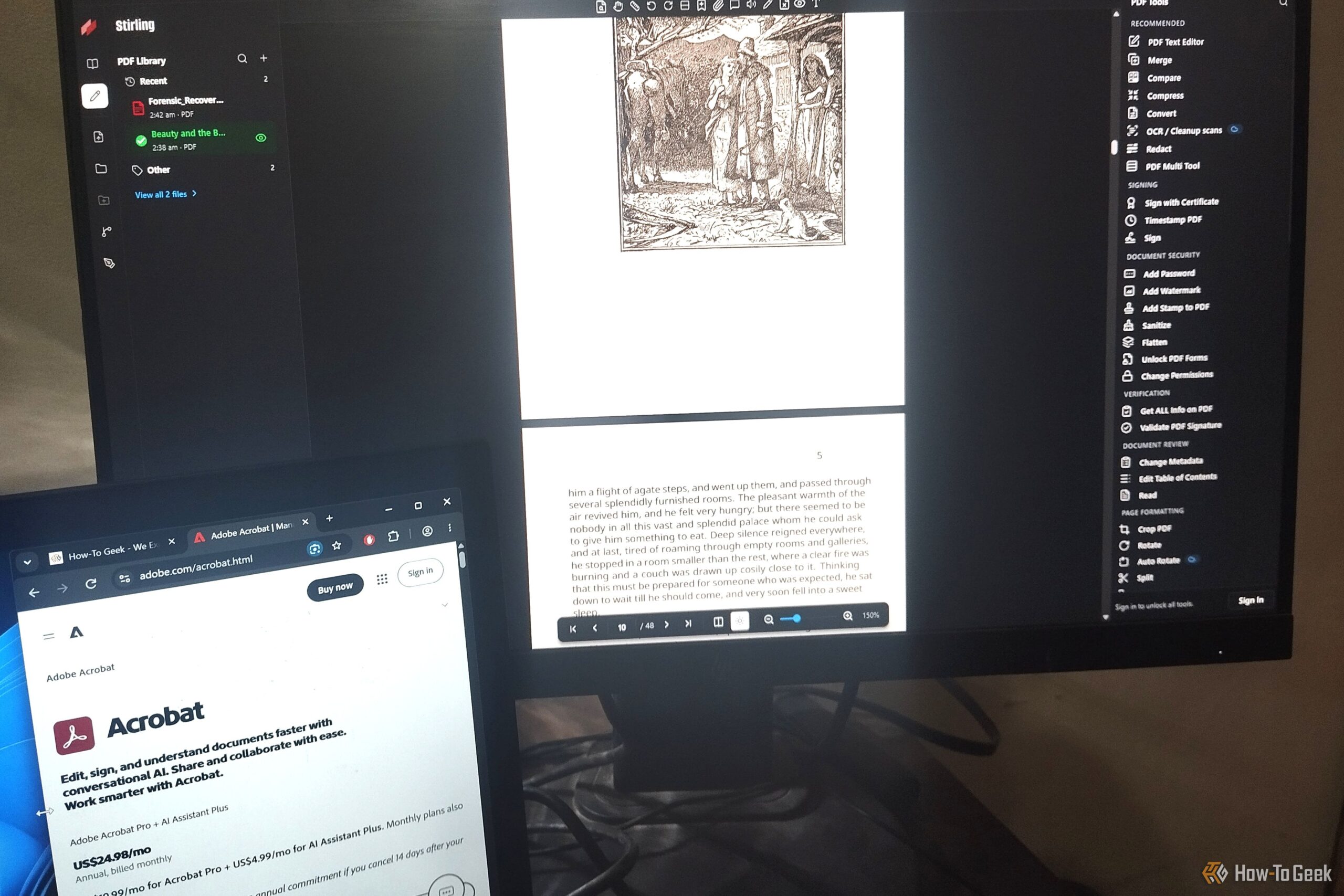
PDF editing tools (Credits: How-To Geek)
The catch, the article stresses, is that no single free tool replaces every Acrobat feature. The trick is picking the right tool for the job you actually do. Here are the two strongest picks from the roundup, both free and available on Windows, macOS and Linux.
Stirling PDF: The Free PDF Toolkit With 60+ Tools
The standout is Stirling PDF, an open-source toolkit with more than 60 tools, available as a desktop app or self-hosted on your own server. You can edit PDF text, merge or split documents, compress files, convert formats, extract pages and add watermarks, plus run OCR to make scanned documents searchable.
Security is well covered too: add passwords, sign a PDF (including with a digital certificate), apply a timestamp, redact content, edit metadata and sanitize files to strip hidden data. It also handles PDF forms and can auto-rename files based on their contents. It is free for individuals and small teams of up to five people, with paid team plans if you need more, and it will still practically always be cheaper than Acrobat.
ONLYOFFICE Desktop Editors: The Familiar Office-Style PDF Editor
If you want a complete desktop office suite that handles PDFs too, ONLYOFFICE Desktop Editors is the pick. Its PDF editor lets you modify existing text, insert images and other objects, draw on pages, run OCR on scanned documents, and add annotations or comments. A handy editing/viewing mode switch lets you inspect a document without accidentally changing it.
The tabbed ribbon interface will feel familiar if you have used Acrobat or Microsoft Office, making it one of the easiest tools here for making real edits without learning a new workflow. The desktop app is free, with paid options aimed mainly at businesses hosting their own servers. Just note the article’s warning: complex PDFs can still be difficult to edit cleanly, so check it supports the specific features you need before switching.
Free PDF Tools: Which One Should You Pick?
For heavy, everyday PDF manipulation, start with Stirling PDF. For straightforward text edits inside a familiar office-style app, start with ONLYOFFICE. And for the simplest jobs, the article notes that built-in options like PDFgear on Windows and Preview on Mac already handle many common tasks. Either way, you can likely skip the Acrobat subscription.
Source: How-To Geek — read the full story there.