Dual booting Linux and Windows is not hard, but a handful of common beginner mistakes can turn a working setup into a constant technical headache. A veteran dual-booter who runs four operating systems side by side on one machine has flagged the pitfalls newcomers keep falling into, and the fixes are simpler than you might think.
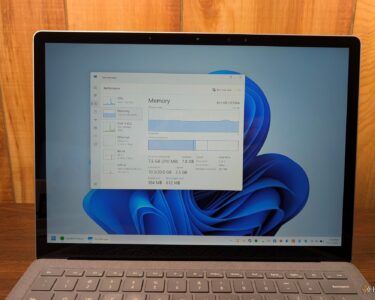
Linux and Windows dual boot (Credits: How-To Geek)
Mistake 1: Installing Linux and Windows on the Same Drive
Technically, you can dual-boot by splitting a single drive into two or more partitions and installing each operating system on its own partition. At first, this setup can work almost flawlessly. Over time, though, it can cause real headaches.
The most common problem is a Windows update changing the UEFI boot order. Ideally, you use GRUB, the most common Linux bootloader, because it can detect and display both Linux and Windows boot entries. But a Windows update can sometimes set Windows Boot Manager as the default instead. When that happens, your PC boots straight into Windows and you lose the choice of operating system, until you fix the boot order in UEFI settings or repair GRUB from a Linux live USB. Sharing one drive also brings the ongoing risk of accidentally deleting or modifying the wrong partition.
The simplest fix is to give each operating system its own physical drive, so each OS gets its own boot partition and neither installer touches the other. Install Windows first and Linux second, since Windows generally will not configure your Linux bootloader, while many Linux installers can detect an existing Windows installation and add it to the boot menu. Then open UEFI settings and set your Linux bootloader as the default, so GRUB appears on startup and lets you choose.
Mistake 2: Leaving Secure Boot Off After the Install
Almost every dual-booting guide tells you to disable Secure Boot before installing Linux, and that step is often necessary. But the step that quietly gets skipped is turning it back on, or dealing with it properly, once the install is done.
That advice is also partly out of date. Most modern distros, including Ubuntu, Linux Mint, and Fedora, ship with shim, a small bootloader already signed by Microsoft, so they will not be blocked by Secure Boot during installation. Some distros, especially Arch-based ones, still require you to turn Secure Boot off first. If you are planning to install the recently popular Omarchy or CachyOS, for example, you will need to disable Secure Boot before proceeding.
The problem is that most beginners turn Secure Boot off, install Linux, and never bother turning it back on. Once the distro is installed, you can manually create your own Secure Boot keys, load them into the firmware, and sign your bootloader and kernel so they work with Secure Boot. It is a recommended process, but one that beginners routinely skip, leaving their machine less protected than it should be.
Dual-Booting Without the Headaches
The theme across both mistakes is the same: the install itself is the easy part, and the boot setup afterwards is where dual-boot systems break. Separate drives, Windows installed first, GRUB set as the default boot option, and Secure Boot handled properly after installation will spare you most of the classic dual-boot grief.
Take a few minutes to get the boot setup right now, and your Linux and Windows PC will stay a pleasure to use instead of a recurring repair job.
Also Read: Frontier AI Labs Say Their Models Refuted the Exponential Time Hypothesis: What It Means | Meta AI Director Rohit Patel Leaves to Take on Microsoft Office and Google Workspace With ndoc
Source: How-To Geek — read the full story there.