Disabled an app from starting with Windows, only to find it open again after your next boot? You are not imagining it — and the fix is rarely as simple as one toggle in Task Manager. According to How-To Geek, some apps are simply more stubborn than others, and the culprit is usually a second trigger you never touched.
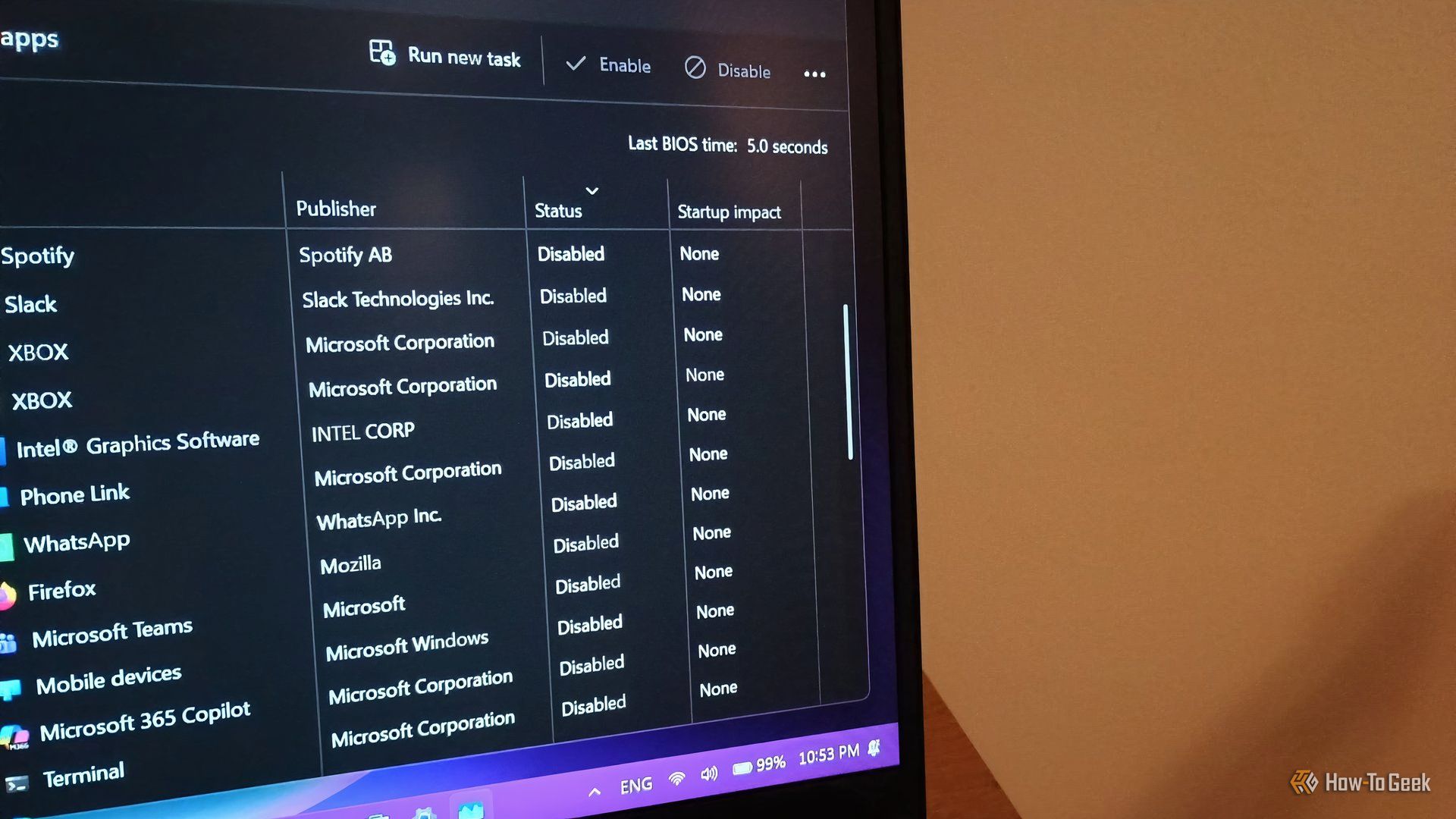
Windows 11 startup settings (Credits: How-To Geek)
Many users follow the straightforward route: open Task Manager, head to the Startup apps tab, and disable anything they do not want launching at logon. That saves boot time and cuts distractions — but it is not always enough. The author caught supposedly disabled apps still opening on startup, sometimes maximised, sometimes running in the background and sending notifications. Most recently it was Discord; in the past, Spotify pulled the same trick.
Why Disabled Apps Still Launch on Windows 11 Startup
The key insight is that Task Manager’s Startup apps tab only disables one startup trigger. If an app uses secondary components — helper processes, launchers or updaters — those can override your preference and launch the app anyway.
That is exactly what happened with Discord. Even with the main app disabled, a separate update process kept starting it at logon, regardless of what Task Manager said. The lesson: disabling the app you can see is not the same as disabling everything that can start it.
How to Stop Stubborn Apps From Launching at Boot
So what should you check? Start by looking for separate app helpers, game launchers or updaters tied to the program in question. These often appear as their own entries in startup lists, or run as background processes with different names from the main app. If a launcher or updater is still enabled, the main app can come back with it.
It is also worth checking the app’s own settings. Many programs include their own “launch at startup” or “run in background” options that operate independently of Task Manager, and some re-enable themselves after updates. Turning those off inside the app, alongside the Task Manager entry, closes the loop.
Finally, be methodical: after making changes, restart and watch what actually launches, rather than assuming the toggle worked. If an app still appears, note its process name — that is often the clue pointing to the helper or updater responsible. A few minutes of detective work beats a lifetime of closing the same window every morning.
Also Read: These 3 Linux Apps Replaced All My Favourite Dead Windows Apps: WordPad, Movie Maker and Winamp | The 6 Most Unusual Things You Can Do With USB Flash Drives in 2026
Source: How-To Geek — read the full story there.