Noticed your Samsung phone losing battery fast since using wireless Android Auto? You’re not alone. Wireless Android Auto can drain 8-15% of battery per hour (per BGR), and on Samsung devices like the Z Fold 5 it can be even worse — sometimes even when you’re not actively driving. Here’s what’s happening and how to fix it.
Why Wireless Android Auto Drains Your Battery
Unlike a wired connection, wireless Android Auto forces your phone to constantly compress and stream data, which eats system resources. The real battery killer, though, is the background behavior: Android Auto can auto-connect in the background and even turn Wi-Fi back on by itself as part of its normal cycle.
The issue seems more prominent with electric vehicles, and Samsung users have been reporting it for a while — a 2024 Chevy Bolt forum thread about the same drain was, tellingly, about a Samsung phone. The author’s own Moto G in the same car had no problem at all.
How to Fix Wireless Android Auto Battery Drain
The main fix: turn off “Start Android Auto while locked”. On a Samsung phone, open Settings and search for “Android Auto” (or find it under Connected Devices), go to Startup, and toggle the setting off. Also set Android Auto to only start automatically if it was used on the last drive — a safer middle ground.
If that doesn’t fully fix it, try these in order: manually disconnect Bluetooth after parking and check whether the phone tries to reconnect itself; as a last resort, disable wireless Android Auto entirely and use a cable, or unpair the phone and see if the drain persists.
With auto-start locked down, the phone stops trying to maintain a stream you’re not using — and your Samsung should get back to its normal standby battery life.
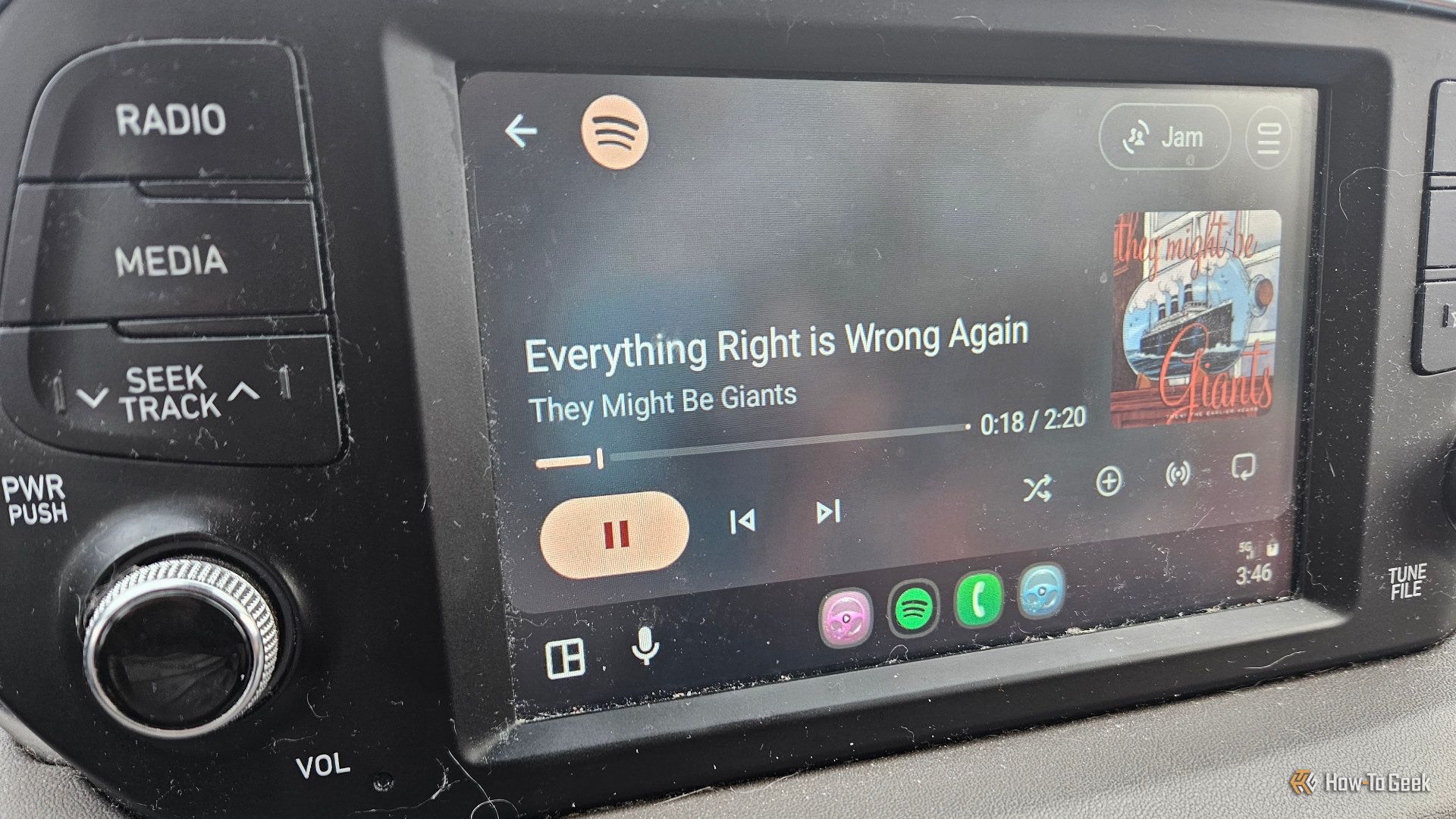
Android Auto (Credits: How-To Geek)
Also Read: How to Use a 3D Printer to Give Old Phones and Smart Home Gear a Second Life and Got an Old Fire Tablet Lying Around? Give It Just One Job
Source: How-To Geek — read the full story there.