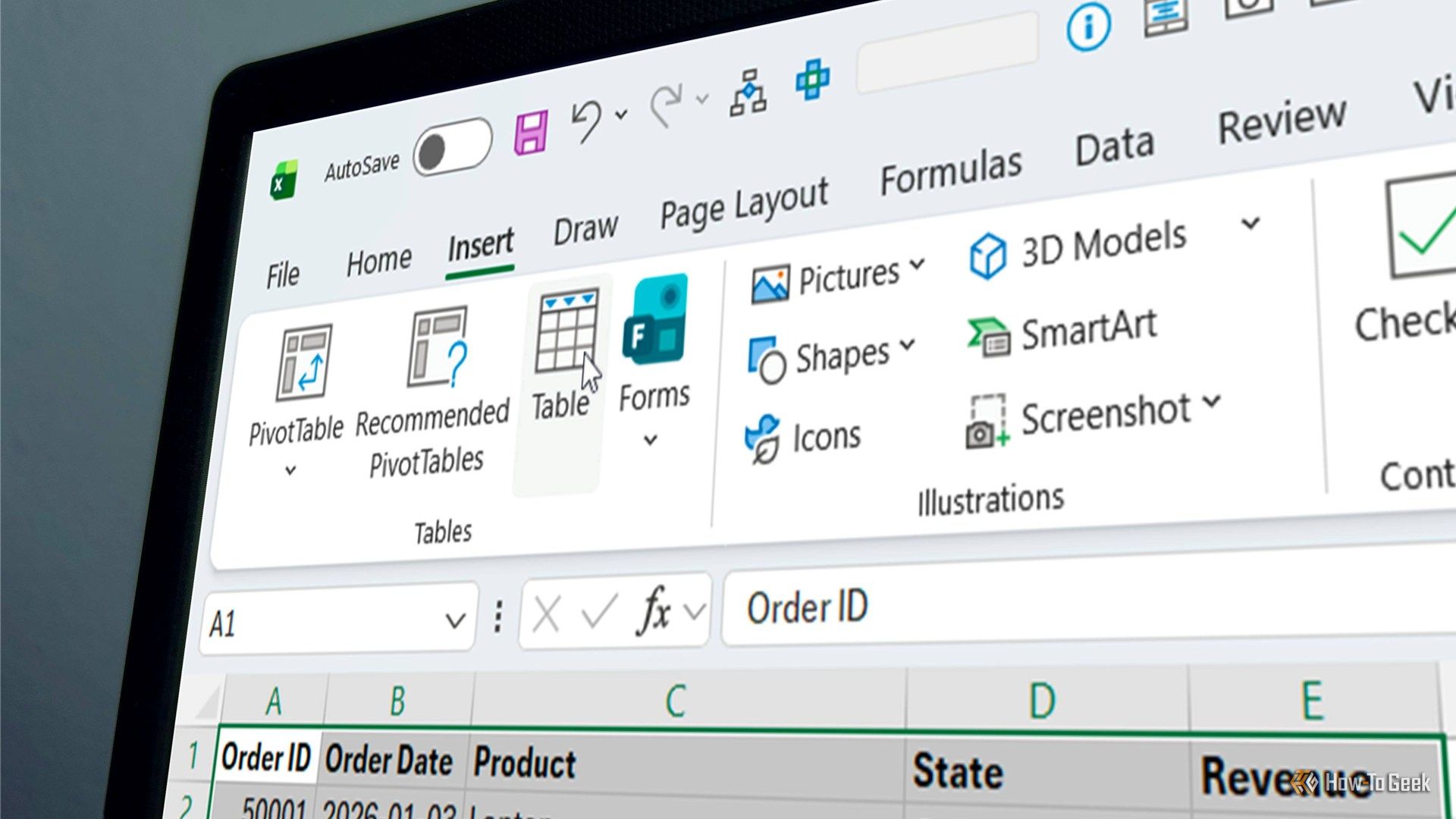
Microsoft has finally fixed the most annoying part of naming Excel tables. Two decades after Excel introduced tables, the app now lets you give a table a meaningful name right in the Create Table dialog — instead of forcing you to create it first and rename it afterwards.
Microsoft Excel tables (Credits: How-To Geek)
If you have ever skipped naming a table because it meant an extra trip to the Table Design tab, this small change removes the excuse. Here is why it matters, and how to use it.
How to Name an Excel Table When You Create It
Select your data and go to Insert > Table. In the Create Table dialog, type a name in the new name field, check that Excel has identified the correct range, and make sure the headers checkbox reflects whether your data has headers. Then create the table as usual.
That is the whole workflow: name it once, at creation, and you never have to chase it down later.
Why Naming Excel Tables Is Worth Doing
Giving an Excel table a proper name might seem like unnecessary housekeeping when you are busy building a spreadsheet. After all, Excel has already named it for you. But leaving tables with generic names like Table1, Table2 and Table3 quickly becomes unhelpful as your workbooks grow.
When you are working with multiple tables, meaningful names make your formulas much easier to understand. For example, =SUM(tblSales[Profit]) tells you exactly what you are adding together, whereas a formula referring to Table7 leaves you guessing about what that table contains. This becomes particularly useful when you are building formulas that reference several tables.
Proper table names also make navigating large workbooks much easier. The Name Box drop-down menu lists your tables by name, so you can select the one you need and jump straight to it instead of scrolling through dozens of worksheets.
There are benefits beyond formulas and navigation too. When you are working with Power Query, PivotTables and other Excel features, descriptive names help you identify the correct data source. If you regularly reuse tables across different parts of a workbook, that clarity can save you time and reduce mistakes.
Microsoft has spent years pushing Copilot updates into Excel, but for everyday users it is the little usability improvements that make the biggest difference. A small change to a dialog box can save you a few clicks, remove an annoying extra step, or make a good habit easier to stick to — and this one does all three.
Also Read: This 5-Minute Setup Permanently Shares a Linux Folder With Your Android Phone | 3 Open-Source Mac Tools You Should Install Today: Maccy, LuLu and LocalSend
Source: How-To Geek — read the full story there.