Is your Google Keep a graveyard of half-finished lists? Grocery items in one note, article ideas in another, errands scattered everywhere, and nothing findable when you actually need it? Here’s the fix one writer swears by: stop managing Keep by hand and hand the busywork to Gemini.
The idea is simple. Instead of typing out every list item yourself or scrolling through dozens of old notes, you let Google’s AI build the lists, find your notes, and update them on command. Here’s how it works, step by step.
Google Keep and Gemini (Credits: How-To Geek)
How to Let Gemini Build Your Google Keep Lists
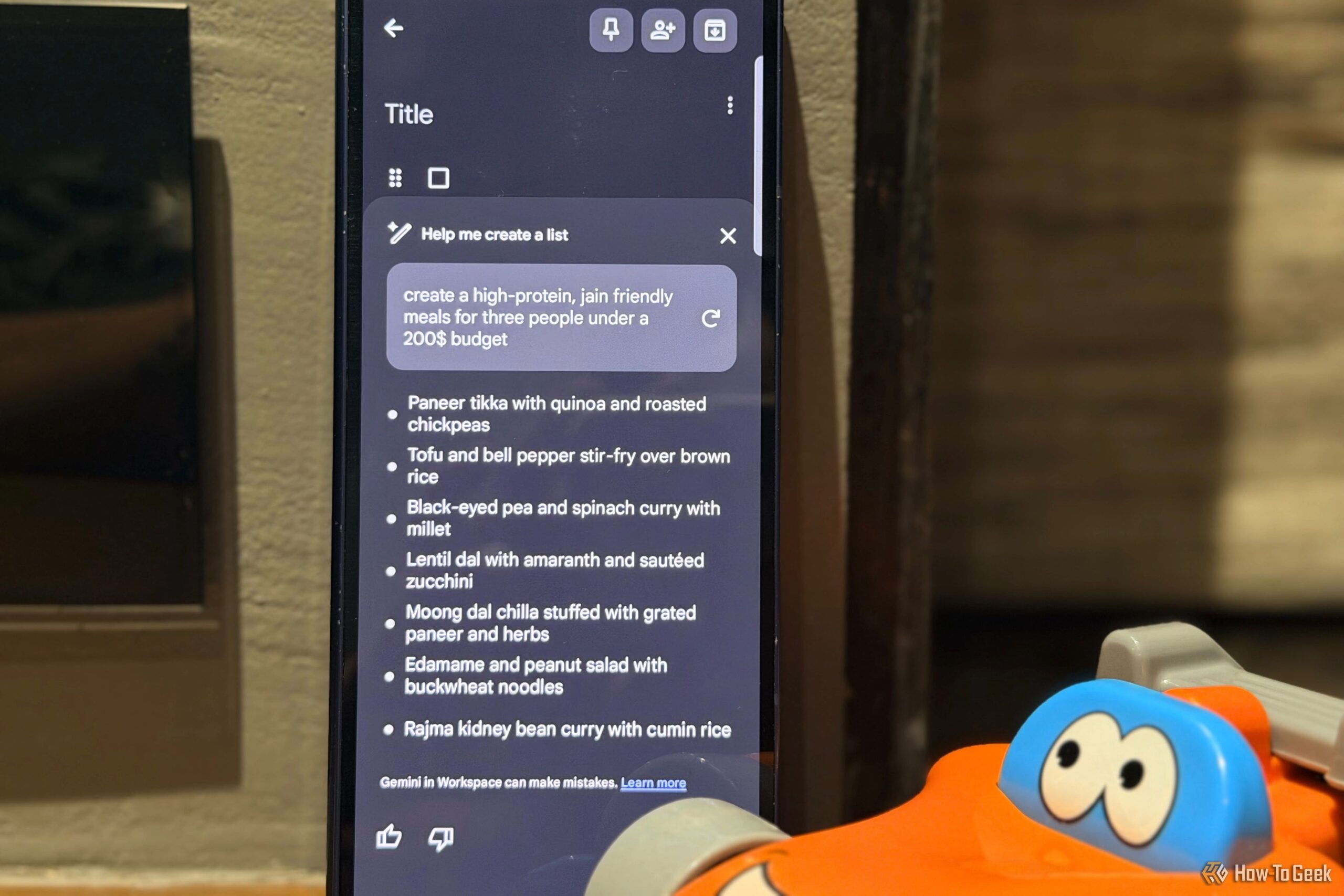
Google Keep has a built-in feature called Help me create a list that turns a plain request into a ready-made checklist. Open Google Keep, tap the Create (+) button, and choose Help me create a list in the bottom-right corner. Then just describe what you need.
For example, try a prompt like: “Create a grocery list for a week of high-protein meals for three people.” Or, for travel: “Create a packing list for a two-day family trip to Delhi in December.” Gemini drafts the checklist, including essentials you might have overlooked, like a jacket for cooler weather, and you review and save it. The result: less time building lists, more time actually getting ready.
This works best for the lists we all rebuild from scratch again and again: weekly groceries, packing lists, work tasks, and errands. Describe the situation once, and the AI does the tedious typing.
How to Connect Gemini to Google Keep
The bigger time-saver comes from connecting Gemini to your Keep notes directly. Open the Gemini app, go to Settings, select Apps, and connect to Google Workspace, making sure Google Keep access is enabled. Then, in any Gemini chat, you can type @Google Keep to pull your notes into the conversation.
That means no more scrolling. Instead of hunting through old notes, you can ask: “@Google Keep, find the note where I saved travel details for our Delhi trip in December.” Gemini finds it, and you can ask it to summarise the note before you start working from it.
It also solves the never-finished grocery list problem. Remembered you need lasagna sheets and cheese for Saturday’s guests? Don’t make a new list. Just tell Gemini: “Add lasagna sheets and cheese to my list called Weekly Groceries.” The existing list updates, and your notes stay tidy instead of multiplying.
The takeaway is not that AI replaces your memory, but that it finally makes your notes searchable and updatable in plain language. Your lists are already in Keep; Gemini just gives you a faster way to use them, and that is where the hours come back.
Also Read: 4 Powerful Google Maps Customizations Hidden in Your Settings | The Googlebook’s Best Feature Is the One Thing You Can’t See While You’re Using It
Source: How-To Geek — read the full story there.