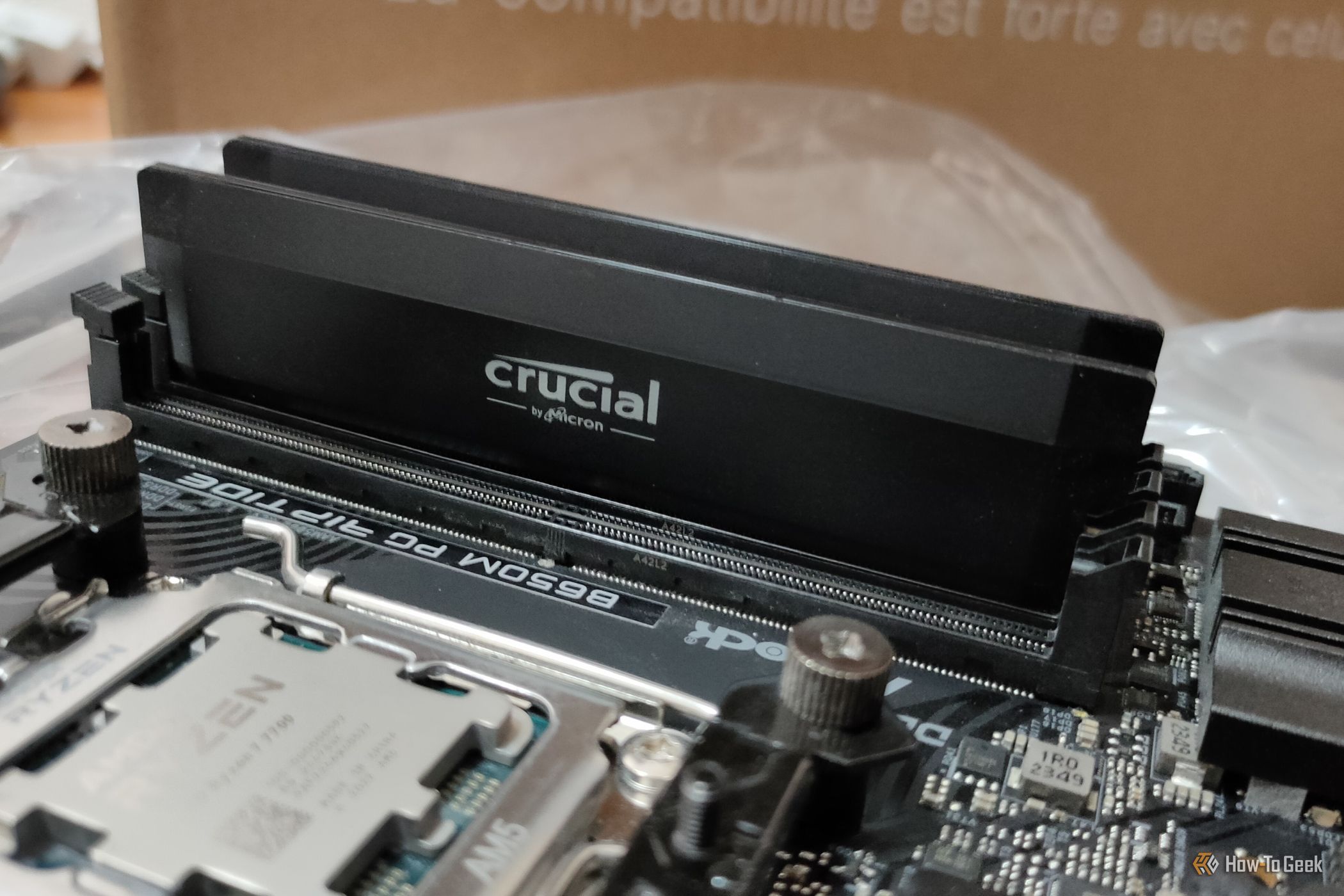
Are your files getting corrupted, but your SSD checks out perfectly? Before you replace the drive, check your RAM. That was the hard lesson in a new How-To Geek account, where corrupted archives, failed installers and files that suddenly refused to open all pointed to storage, until the real culprit turned out to be faulty system memory.
Faulty RAM (Credits: How-To Geek)
It is an easy mistake to make. When files go bad, the drive they live on is the obvious suspect, and most of the time that instinct is right. But this case is a reminder that a healthy drive can still end up storing corrupted data, if that data was damaged before it ever reached the disk.
Why Corrupted Files Do Not Always Mean a Failing SSD
The first step in the story was exactly what most PC owners would do: check the SSD. Its SMART health data showed nothing wrong, which is reassuring but not conclusive. Healthy SMART readings do not rule out every storage problem, and filesystem errors or software issues can also cause trouble.
Even so, when the usual checks keep coming back clean and files keep getting corrupted, it is time to widen the search. The key insight was simple: just because corrupted files were sitting on the SSD did not mean the SSD itself damaged them.
That is where RAM comes in. Memory is temporary, and it is wiped when your PC turns off, so it is easy to forget how much it touches. Every time you download a file, extract a ZIP archive, edit a document or save your work, that data passes through system memory. If your RAM is faulty or unstable, errors can creep in while data is being processed or briefly held there.
Your SSD then does exactly what it is told: it writes the damaged data faithfully, leaving you with a perfectly healthy drive full of corrupted files.
How to Tell If RAM Is Corrupting Your Files
The scary part is that this can happen without any crashes at all. Memory errors can be intermittent, affecting only certain operations, so Windows can seem perfectly stable while files are quietly being damaged in the background. No blue screens, no obvious warnings, just installers that fail integrity checks and archives that will not open.
That is why a memory test matters when SSD diagnostics find nothing. A dedicated memory test stresses your RAM in ways normal use does not, and it can reveal faults that drive checks will never see. If the test finds errors, try the usual next steps: reseat the RAM sticks, test them one at a time if you have more than one, and check whether the problem follows a particular stick or slot.
If a stick fails on its own, replacing that RAM is usually far cheaper, and far less disruptive, than replacing an SSD that was never broken in the first place. And if the memory tests clean, you have at least ruled out a sneaky culprit and can go back to investigating storage, software or filesystem issues with more confidence.
The lesson is worth remembering next time a file refuses to open: do not stop at the drive. When corruption keeps happening and the SSD looks healthy, your RAM might be the part quietly breaking everything it touches.
Also Read: Stop Doing Windows Chores Manually: 3 Free PowerToys Tools That Do Them for You | This $15 Gadget Transformed My Desk Setup — and It Beats $140 Light Bars
Source: How-To Geek — read the full story there.