When your Wi-Fi drops without warning, you probably blame your ISP — or a dead zone in your house. But there is another suspect most people never consider: military radar. Your router actually shares part of the 5GHz spectrum with radar systems, and when radar gets priority, your router has to give way.
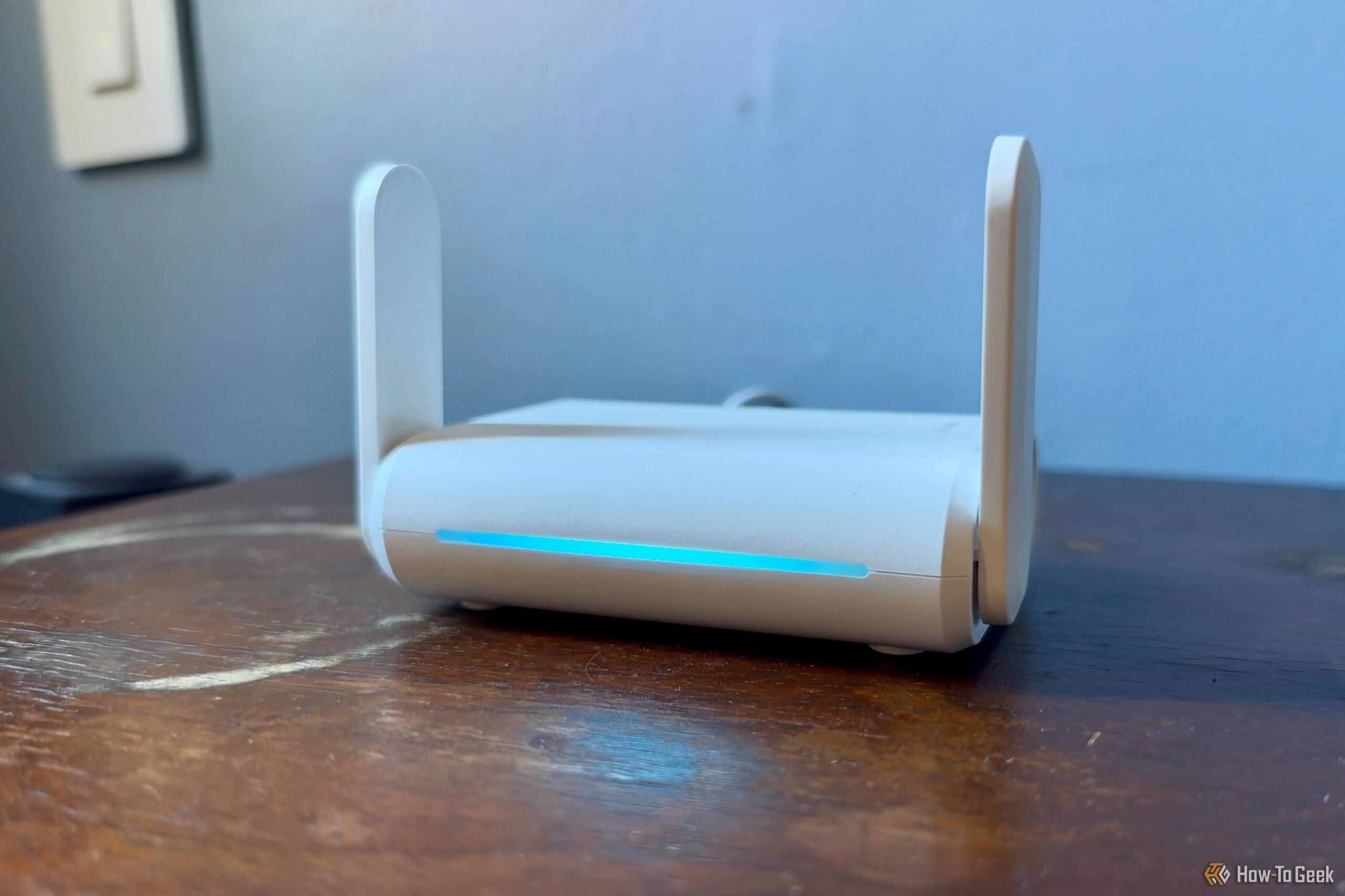
Wi-Fi router (Credits: How-To Geek)
Why Your Router Shares Spectrum With Military Radar
Some of the frequencies your router uses also share space with military, aviation, and weather radar systems. To coexist, routers use something called Dynamic Frequency Selection (DFS), which lets them operate on extra 5GHz channels — channels 52–64 and 100–140 — provided they follow strict rules. The upside: DFS channels tend to be less crowded, which can mean better Wi-Fi performance.
Radar Detection Can Make Your Wi-Fi Suddenly Disappear
The trade-off is that radar gets priority. If your router detects radar activity on the DFS channel it is using, it has to abandon it — under US regulations, within 10 seconds, and it cannot use that channel again for at least 30 minutes. Your router should hop to another channel, but devices on the 5GHz band can temporarily lose their connection in the process.
Things get worse if the router lands on another DFS channel: before broadcasting there, it may need to spend one to ten minutes checking for radar activity, leaving your 5GHz network unavailable in the meantime. The 2.4GHz band usually keeps working, but that is where your smart-home gadgets live — not your computer.
How to Stop Radar From Kicking You Off Wi-Fi
If you live near a military base, airport, or weather station and your 5GHz drops are maddeningly random, the fix is simple: avoid DFS channels. Log into your router’s admin panel, find the wireless settings, and switch your 5GHz network to a non-DFS channel (36–48 or 149–165). You lose the less-crowded DFS lanes, but you gain stability — no more surprise dropouts during work calls or gaming sessions.
Also Read: More practical tech fixes in our Guides & Deals section here.
Source: How-To Geek — read the full story there.