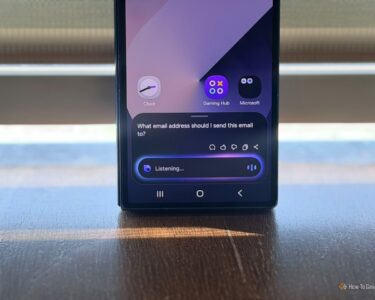
Here’s a problem you may not even know you have: turning on your PC. If your desktop sits under your desk — or you want to power it on remotely — you’re out of luck without reaching for the case button. The free fix is Wake-on-LAN (WoL), a decades-old networking feature that lets you wake a compatible PC from your phone with zero extra hardware. (Phone waking a PC — Credits: How-To Geek)
Here’s how it works, step by step.
How to Set Up Wake-on-LAN for Free
1. Check your hardware supports WoL. Most desktop motherboards and Ethernet adapters do, but verify before you start. The setup works best over a wired Ethernet connection — Wake-on-WLAN (the Wi-Fi equivalent) is much less widely supported.
2. Enable Wake-on-LAN in your BIOS/UEFI. Restart your PC, enter the BIOS/UEFI, and look for a setting called Wake on LAN, Power On By PCI-E, Resume By PCI-E, or similar. The exact name varies by motherboard, but the idea is the same: allow the network adapter to wake the PC.
3. Note your network adapter’s MAC address. The “magic packet” your phone sends contains this unique identifier, so copy it from your PC’s network settings.
4. Install a WoL app on your phone. A free Wake-on-LAN app can send the magic packet to your PC’s MAC address over your home network.
5. Test it. Put your PC to sleep, then tap send in the app. The magic packet tells the PC to wake up and get to work.
Why Wake-on-LAN Works Even When Your PC Is Asleep
The clever part: on supported systems, the network adapter stays partially powered even while the PC sleeps, listening for the magic packet. That makes WoL ideal for waking a gaming PC before you sit down at the desk, or spinning up a home server before you access it.
Best of all, using Wake-on-LAN within your home network does not force you to expose your router to the internet — it stays local and safe.
Also Read: Love Your Samsung Galaxy? Replace These 3 Preinstalled Apps Immediately
Source: How-To Geek — read the full story there.