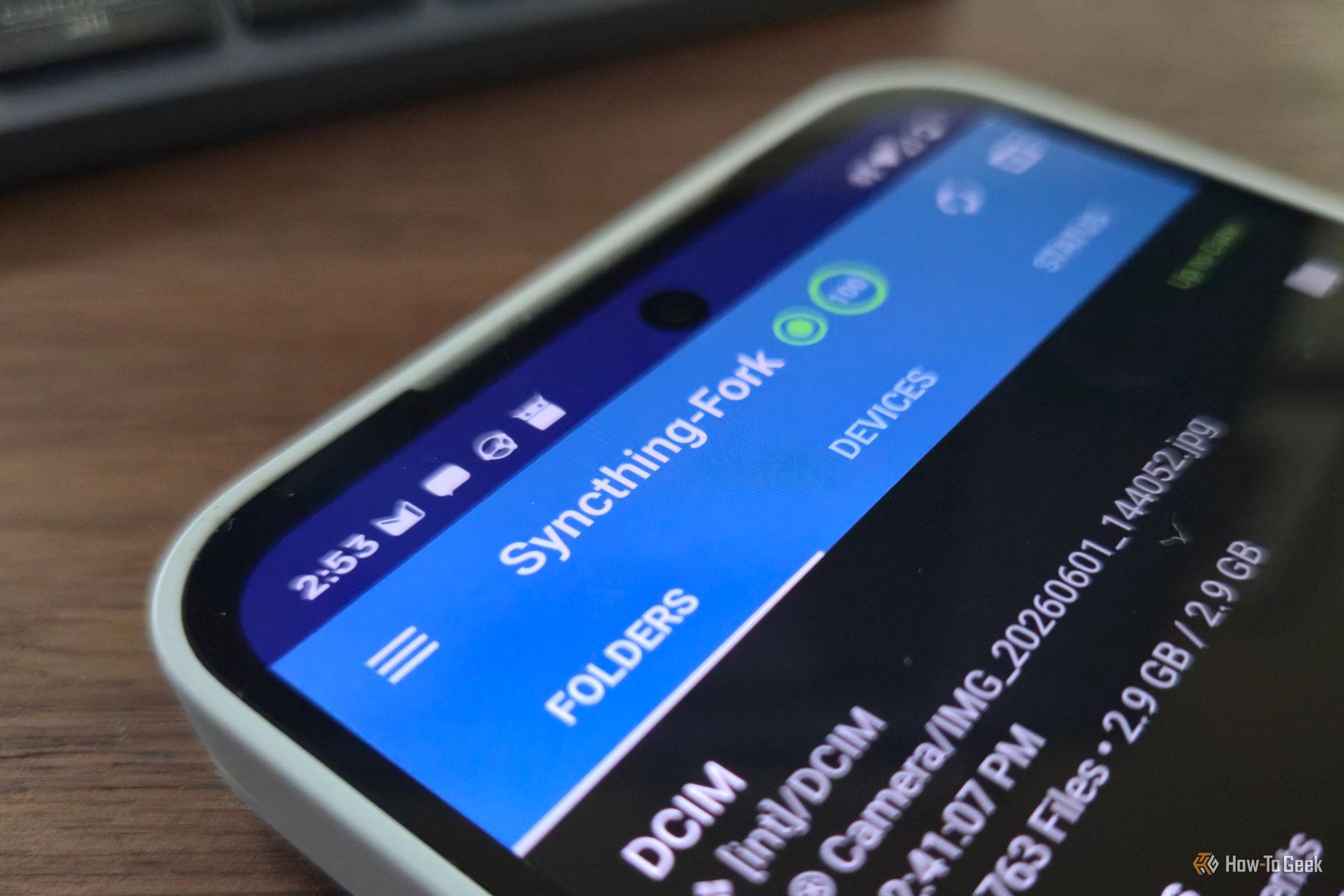
Moving files between a Linux PC and an Android phone usually means plugging in a cable, emailing files to yourself, or going through the cloud. There is a simpler permanent fix: a 5-minute Syncthing setup that keeps a folder synced between your Linux machine and your phone automatically, over your home Wi-Fi.
Syncthing on Android (Credits: How-To Geek)
Why Syncthing Beats USB Cables and Cloud Storage for Linux to Android Sharing
USB transfers come with MTP quirks and the hassle of actually plugging the phone in — annoying when you are moving a dozen photos and screenshots at a time. Cloud storage adds extra steps and uploads. KDE Connect is handy for sending a file now and then, but it is not designed as a sync program.
Syncthing is a peer-to-peer synchronization tool: any folder you select is duplicated across every device you specify. It is decentralized, so there is no single point of failure — your devices talk directly to each other. Every connection is encrypted, so your data stays secure whether you are on home Wi-Fi or using a relay.
How to Share a Linux Folder With Your Android Phone Permanently
First, install Syncthing on your Linux PC and pick the folder you want to share. Then install the Android app — note that the official Syncthing app for Android has been deprecated since 2024, so use the fork, aptly named Syncthing-Fork, available on both Google Play and F-Droid. The Play Store release runs a bit behind the latest build, while F-Droid gets updates faster, so pick the one that suits you.
Next, pair the two devices in the app, then specify the folder to share. That is the whole setup: drop a file or folder into the shared folder on your PC, and it appears on your Android phone almost instantly. The only delay is the transfer speed of your home Wi-Fi network.
Once it is running, there is nothing left to manage. New photos, screenshots and documents land on both devices as fast as you create them — no cables, no emailing yourself, no cloud middleman.
Also Read: A Landline Phone Icon Appeared in Your Android Status Bar — Here’s What It’s Trying to Tell You
Source: How-To Geek — read the full story there.