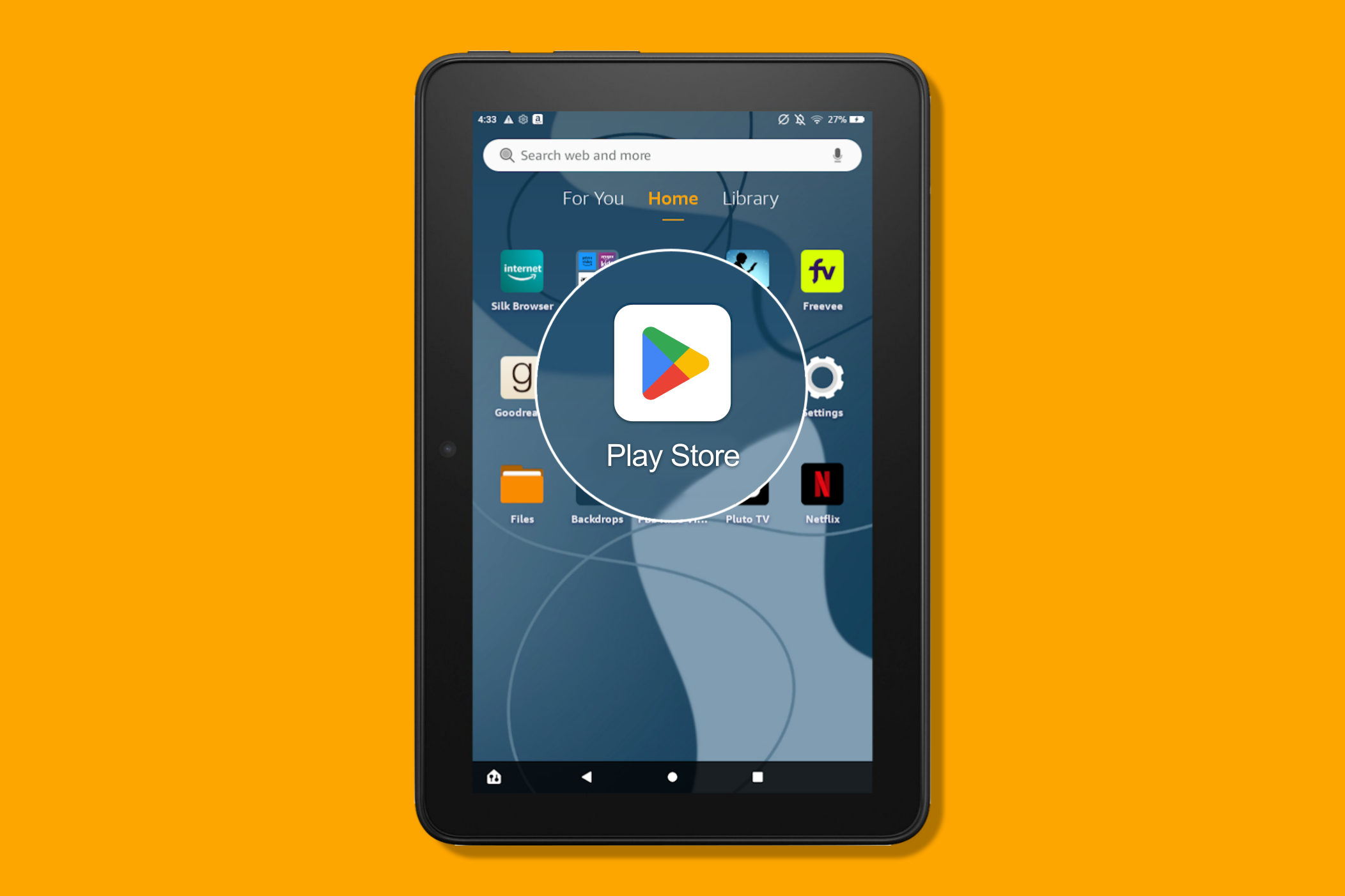
You’re not stuck with the Amazon Appstore. Your Amazon Fire Tablet runs Fire OS — a custom version of Android — which means you can install the Google Play Store and unlock millions of Android apps and games, including Gmail, Chrome and Google Maps. The best part: no rooting, no hacks, no PC scripts. Just four APK files, installed from the tablet itself.
Amazon Fire Tablet (Credits: How-To Geek)
Before You Start: Check Your Tablet and Back Up
This process has been tested with all Fire tablets, including recent devices running Fire OS 8.3.3.6 (based on Android 11), and works on any Fire Tablet from 2014 or later. Two things before you begin: remove the microSD card if one is inserted — you could lose data during the install otherwise — and note that Google doesn’t officially offer the Play Store on Fire tablets, though it works well in practice.
First, confirm your model: go to Settings > Device Options > About Fire Tablet to see your Device Model, and Settings > Device Options > System Updates for your Fire OS version. You’ll need the right APK variants for your device.
Step 1: Enable Apps From Unknown Sources
Open the Settings app from the Home tab, find Silk Browser, and toggle on “Allow From This Source.” This lets you install apps from outside the Amazon Appstore using the built-in browser.
Step 2: Download the Four APKs
You need four files from a trusted source like APKMirror.com: Google Account Manager, Google Services Framework, Google Play Services and the Google Play Store itself. Paste the model-specific links into Silk Browser and download them — don’t open them yet. Watch for APK Mirror’s deceptive ads: look for the “Download APK” button showing a file size, colored to match the app’s icon, with a “Verified safe to install” message. Ignore prompts about newer versions being available.
Step 3: Install in Order and Sign In
Install the four APKs in order, then open the Play Store and sign in with your Google account. That’s it — you’ll have the full Play Store working like a regular Android tablet. Slide the microSD card back in, and your Fire Tablet is no longer limited to Amazon’s store.
Also Read: Got an Old Fire Tablet Lying Around? Give It Just One Job and It Gets a Second Life
Source: How-To Geek — read the full story there.