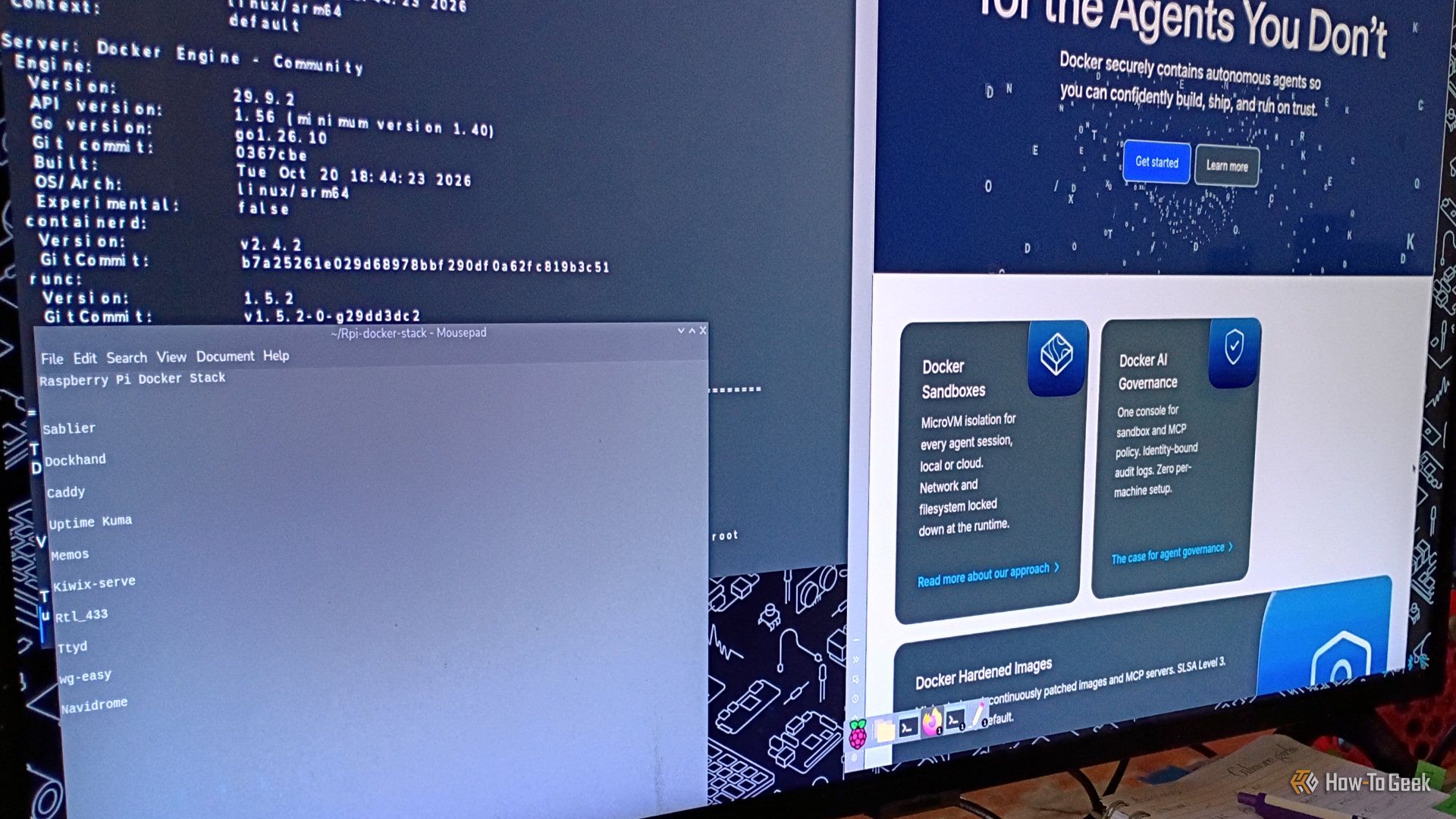
Think your old Raspberry Pi 4 can’t handle Docker? Think again. One How-To Geek writer put an aging Pi 4 through its paces, upgraded the OS, installed Docker and Docker Compose — and ended up running a surprisingly capable home-lab stack with a few important caveats.
Raspberry Pi 4 (Credits: How-To Geek)
How to Run Docker on a Raspberry Pi 4
The setup started with a fresh OS install — the Pi 4 was upgraded from Bookworm to Trixie, converting it from a dedicated retro-gaming box into a mini PC. Installing Docker and Docker Compose turned out to be straightforward, after which it was a matter of creating folders and compose files for the container stack.
One key tip: to protect the microSD card that holds Pi OS, databases and logs should be mapped to an external USB drive. Constant writes can chew through a microSD card, so offloading that I/O to USB storage is the single biggest durability win in the setup. Watch out for volume-mapping syntax errors — a misconfigured bind mount will stall your whole stack.
What Runs Well on a Pi 4: Caddy, Memos, and Kiwix
There were hits and misses, but three containers stood out. Caddy — the easy-to-configure web server — worked right away. Memos, a lightweight note-taking app, ran smoothly and proved faster and cleaner than opening a separate notepad app on the Pi. And Kiwix, the offline knowledge library, delivered compressed ZIM archives of Wikipedia, Stack Exchange and public-domain books for reading without internet access — you just need to have ZIM files downloaded in its directory first.
The takeaway: a fresh OS and a USB drive for persistent storage turn an old Pi 4 into a genuinely useful Docker host. Don’t expect miracles from heavy containers, but for lightweight self-hosted apps, the Pi punches above its weight.
Also Read: These 2 Set-and-Forget Docker Containers Do Most of My Homelab’s Work
Also Read: 6 Pi-hole Mistakes That Can Turn Your Home Network’s Privacy Tool Into a Security Risk
Source: How-To Geek — read the full story there.