Want to mod Windows beyond what Microsoft gives you out of the box? The good news is that Windows modding is back — and according to How-To Geek, the best tools for the job are open-source ones that go far further than Microsoft’s own options.
Windows Modding (Credits: How-To Geek)
Here is the problem: built-in Windows options and even Microsoft’s PowerToys only take you so far. If you have caught the modding bug and want to build the Windows desktop of your dreams, third-party open-source tools are where the real customisation lives.
Start With What Windows Already Gives You
Before installing anything, it is worth knowing what you can already do for free. Built-in Windows options let you bring back the Windows 10-style right-click menu via the Registry Editor, toggle transparency effects, use a limited selection of custom themes, and finally move the taskbar again.
Microsoft’s PowerToys is also a fantastic open-source tool, but How-To Geek notes its Windows modding capabilities are fairly limited. It is a great utility collection, just not a full modding platform.
Use Windhawk as Your Windows Modding Marketplace
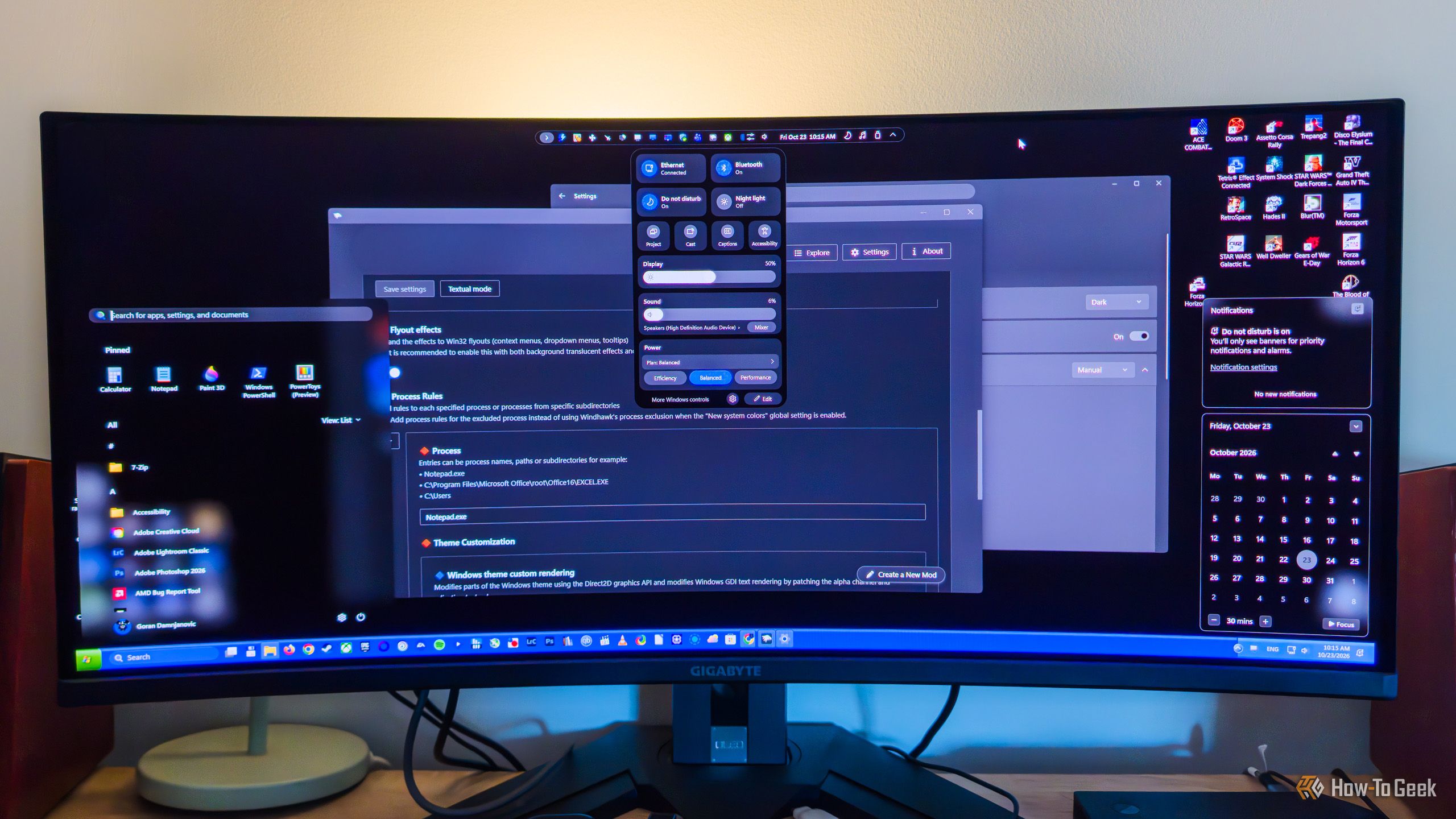
For most people, Windhawk will be all you need to mod Windows. The app itself does not customise anything on its own. Instead, it works as a modding marketplace where you can browse a large collection of community-made mods that touch most elements of the Windows desktop.
Beyond the obvious Start menu and taskbar tweaks, Windhawk mods can change the Settings app, add a macOS-like menu bar or an iPhone-like Dynamic Island, let you scroll through Chrome tabs with your mouse wheel, remove window borders, control per-app volume by scrolling over taskbar icons, and block the F1 key from opening help pages in apps.
The marketplace is so large that exploring it takes time — but that is the point. There is a good chance you will find a mod that does exactly what you have always wanted to change in Windows but could not with built-in tools.
One Windows Modding Rule You Should Not Break
You can combine different modding tools, such as Windhawk and Nilesoft Shell, but do not stack similar mods from the same or different tools. Two taskbar mods at once, for example, can break elements or make them display incorrectly.
How-To Geek’s author learned this first-hand: combining a transparent taskbar mod with a macOS-like dock mod cut the Search button in half. Pick one mod per element, test it, and only then move on to the next change.
Also Read: TXT Members Seemingly Address Soobin Deepfake Controversy With a Message to Fans
Source: How-To Geek — read the full story there.